Title options (pick 1)
7 open-source tools I actually use every day, from ops to AI in one stack
From all-in-one SSH to a desktop AI pet: 7 open-source projects worth installing
7 open-source tools you won't give up once you try them — servers, agents and canvases covered
1. Intro: what if a tool could finish this one step for you…
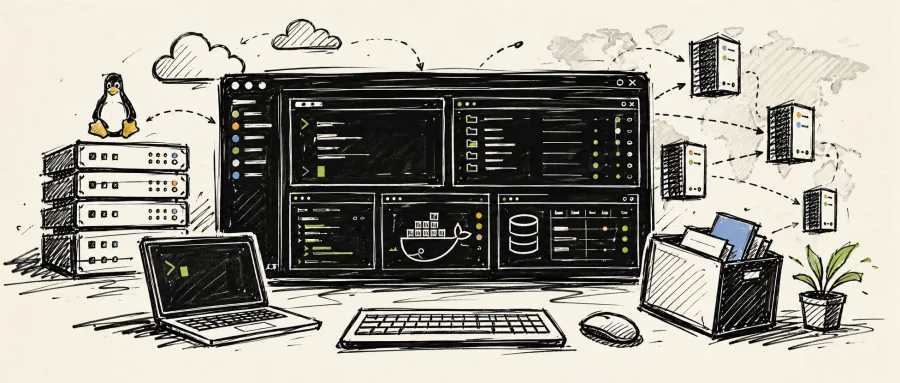
It's 3 p.m. on a Friday and you're chasing a slow query in production. SQL is running in the terminal, config is half-edited in your editor, Navicat is connected to the test database, and two SSH sessions are tailing logs on remote servers. Just arranging those windows cost you five minutes. That's before counting yesterday's half-finished Agent conversation, scattered across ~/.claude, ~/.codex and a dozen project directories, impossible to find. Each of the 7 open-source projects below removes one specific piece of that mess.
2. At a glance
| Repo | Stars | Main language | One-line pitch |
|---|---|---|---|
| omarsenusi/sshbool | 137 | TypeScript | Rust-powered workbench that fuses SSH, databases and monitoring |
| feigeCode/navop | 1.4k | Rust | Native GPUI full-stack ops client covering 20+ databases |
| gna1280072/LeePanel | 599 | Rust | A 6 MB desktop Linux panel with zero install on the server |
| cpp285/OceanPet | 49 | Swift | Native macOS AI pet that watches your cursor and chats with DeepSeek |
| bruc3van/dsh-desktop | 93 | TypeScript | A secure desktop shell around the official DeepSeek Harness Web UI |
| iAmCorey/Wake | 939 | Rust | Fully local search and resume across all your AI Agent sessions |
| penecho/penecho | 2.4k | JavaScript | An AI spatial canvas you can annotate by hand, with MCP support |
3. The projects
omarsenusi/sshbool — one SSH connection for every remote operation
SSHBool folds SSH, SFTP, terminal, remote file editing, live monitoring and database queries into a single Tauri 2 desktop app. The core pitch is "Connect once, do everything": you open one reused SSH connection per server, and the terminal, file transfers, monitoring data and SQL queries all run over different channels of the same socket, keeping latency and server overhead as low as possible.
The stack is Tauri v2 + Rust + React 19, with cold starts under 800 ms and LAN connections established in under 1.2 s. The terminal is WebGL-accelerated Xterm.js, file management is a two-pane SFTP browser, remote editing uses Monaco, and all host configs are stored encrypted with SQLCipher + AES-256, with the master key derived via Argon2id. YubiKey unlock is supported too.
- Who it's for: ops and backend engineers juggling a dozen servers who are tired of hopping between iTerm, FileZilla and DBeaver windows.
- Who should skip it: light users who log into a console in the browser and call it a day. The project is still early — 137 stars.
Quick start
Clone it and install dependencies:
bun install
bun run tauri dev
==Note: this needs the Rust toolchain and Bun==. Once those are in place, dev mode comes straight up.
Repo: https://github.com/omarsenusi/sshbool
feigeCode/navop — a native GPUI client that swallows every database on one machine
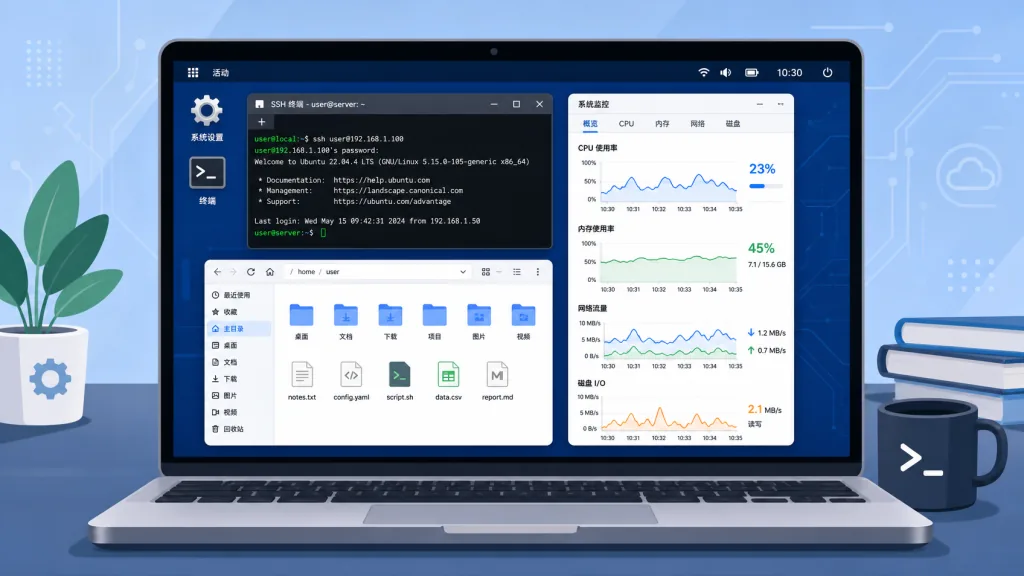
Navop is a "full-stack ops client" written in Rust + GPUI. No WebView — the GPU renders directly, so the performance floor is very low. It puts 20-plus databases (MySQL, PostgreSQL, ClickHouse, OceanBase, openGauss, Dameng, KingbaseES…), SSH/SFTP/FTP, remote desktop over RDP/VNC, MQTT middleware and an AI Agent into one window.
Most of the depth is on the database side: object browsing, SQL editing, execution plans, import/export, cross-database schema and data diffing, and ER diagram visualization are all built in. Redis and MongoDB get dedicated interfaces, while TDengine, MongoDB and MQTT can go through installable extension drivers. The SSH terminal supports split panes, quick commands, broadcast input and session recording/playback.
- Who it's for: senior backend engineers and DBAs who personally maintain several kinds of databases and also handle server work.
- Who should skip it: light users with a single database. Navop's feature density is a lot for newcomers.
Quick start
Grab an installer from the Releases page:
# Download the latest release, then double-click the installer for your OS
open navop.dmg
On first launch, pick a database driver from the prompt. Newcomers get up to speed fastest with MySQL.
Repo: https://github.com/feigeCode/navop
gna1280072/LeePanel — a 6 MB desktop Linux panel
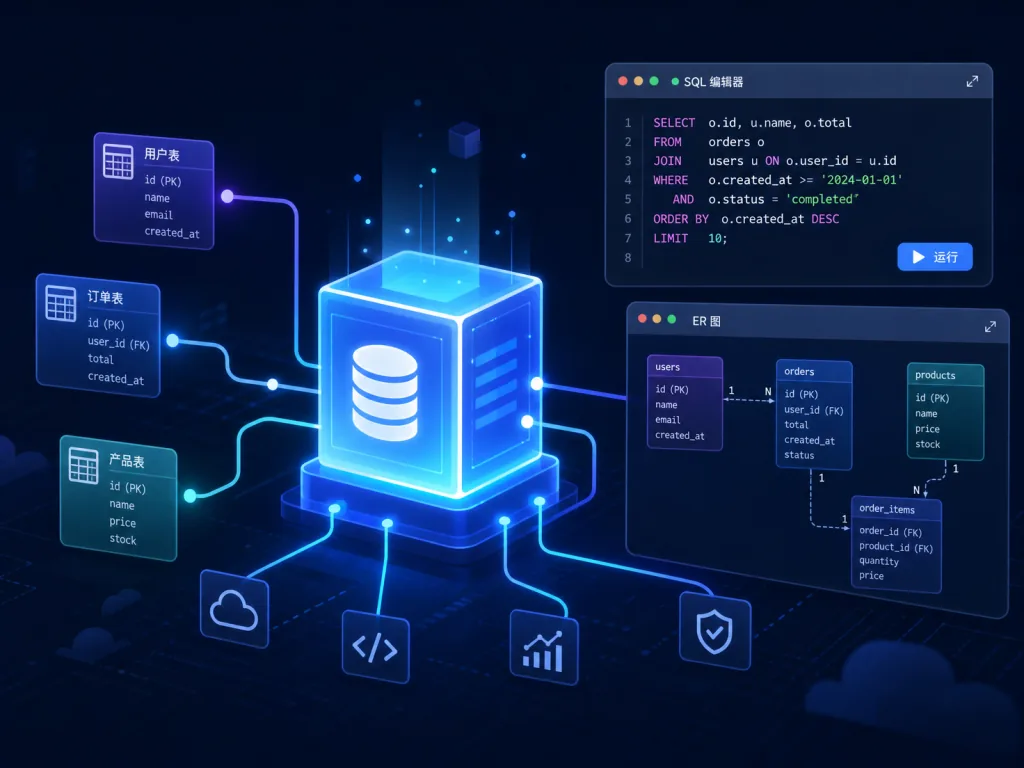
LeePanel moves the "classic BT Panel-style control panel" onto your desktop. Every operation runs over a local SSH connection, so there is zero installation and zero residue on the server. That sidesteps the root problem of a web panel becoming an attack surface itself.
It covers the ops essentials: SSH terminal, SFTP, Nginx, MySQL/MariaDB, PHP, Redis, Docker, Firewall and free SSL certificates. The installer is only about 6 MB and ships for Windows, macOS and Linux. The system requirement is Ubuntu / Debian — other distributions haven't passed official testing yet.
- Who it's for: security-minded people who refuse to run extra services on a server and want only the SSH port exposed, plus solo developers managing several VPS boxes from one machine.
- Who should skip it: anyone who needs to edit files directly on the server, or teams sharing a single machine.
Quick start
Download an installer from Releases and double-click it:
https://github.com/gna1280072/LeePanel/releases
On first launch, add a VPS — host, port, and either a password or a key.
Repo: https://github.com/gna1280072/LeePanel

cpp285/OceanPet — a character-driven AI pet on your desktop
OceanPet is a native macOS desktop pet written with Swift + AppKit + SpriteKit + SwiftUI. It's not a web app and it needs no local server. It's a transparent floating window that stays out of the Dock and doesn't steal focus; it wanders around its "home", smoothly follows your mouse with its gaze, and plays expression animations.
Chat goes through the DeepSeek API, replies follow a character prompt, and the emotion of each reply maps onto expression frames. There are three voice entry points: the mic in the chat box, push-to-talk on a global Option + Space, and saying the character's name to wake it. For local notes you can pick an Obsidian vault, and only snippets relevant to the current question are fed to the model. Character packs are extensible, with five built in: SpongeBob, Patrick, Squidward, Mr. Krabs and the masked fish.
- Who it's for: macOS users who want their desktop to feel alive without being interrupted by notifications, and anyone who wants to write their own AI pet character.
- Who should skip it: Windows / Linux users (macOS 14+ only), and people who don't want to configure a DeepSeek key.
Quick start
Clone and build:
git clone https://github.com/cpp285/OceanPet.git
cd OceanPet
swift run OceanPet
==You'll need a DeepSeek API key on first launch==; the config lives at ~/Library/Application Support/OceanPet/config.json.
Repo: https://github.com/cpp285/OceanPet
bruc3van/dsh-desktop — a secure desktop shell for the official Web UI
DSH Desktop is a third-party Electron client for DeepSeek Harness (dsh) that loads the official Web UI directly instead of shipping its own interface. Its value is the "desktop shell" layer: it lives in the tray after you close the window, long-running tasks reach you through system notifications, and it bundles a "safe marketplace" of 600+ curated plugins that requires the Agent to review before installing.
The security work is fairly solid: Electron runs with the sandbox and context isolation enabled and Node integration off; update packages are SHA-256 verified before install; plugin directories have network reads disabled by default and only fetch once enabled. It reuses an already-running dsh web instance when possible, preferring the dsh on your PATH, then the npx cache, and only then a bundled runtime.
- Who it's for: heavy
dshusers who run long tasks and want notifications even with the window closed. - Who should skip it: casual users who just want to open it, and anyone on macOS — the installer isn't properly signed yet, so you have to clear it manually on first launch.
Quick start
After downloading the installer, run this if the first launch is blocked:
xattr -dr com.apple.quarantine "/Applications/DSH Desktop.app"
Then enter your DeepSeek API key or choose "configure later", add a project folder, and start chatting.
Repo: https://github.com/bruc3van/dsh-desktop

iAmCorey/Wake — pull scattered AI sessions into one window
Wake is a local app written in Rust + GPUI that indexes the session history of ~/.claude, ~/.codex and a dozen other Agents into a single window. It's fully local and read-only, with full-text search and one-click resume.
Search is backed by a SQLite FTS5 trigram index, so CJK text and code fragments like useEffect( both match, and ⌘K / Ctrl+K jumps straight to the message. One-click resume reopens the terminal, returns to the original project directory and runs claude --resume or codex resume. It also ships a read-only MCP server, wake-mcp, so a new Agent can search past sessions and pick up an old task. The stats page has a GitHub-style heatmap plus Agent / Project / Model leaderboards.
- Who it's for: heavy users running Claude Code, Codex, Cursor, Grok Build and other Agents side by side, and teammates who need to hand off context.
- Who should skip it: people with one Agent and very few sessions.
Quick start
Install the skill for your Agent:
npx skills add iAmCorey/Wake
Or just say:
Install Wake for me
Once it's in, ⌘K searches sessions across all Agents.
Repo: https://github.com/iAmCorey/Wake

penecho/penecho — a space where AI thinking can be written and drawn
PenEcho is a "spatial" AI workbench: handwriting, formulas, diagrams and annotations coexist with the conversation. It isn't a chat box, it's a canvas. You keep using Codex, Claude, Kimi and other Agents, and have them draw architecture diagrams, migration paths and event flows onto the canvas over MCP. Then you annotate right next to them with a pen and feed the annotations into the next round.
It ships quite a few diagram templates: Kubernetes production clusters, monolith-to-microservices migration, event-driven notifications, MCP request paths and more. The canvas supports handwriting recognition and LaTeX math, and Markdown export is easy. The license is AGPL-3.0.
- Who it's for: engineers and architects who regularly discuss architecture with AI and need diagrams to iterate back and forth, plus teams that review designs and mark them up live.
- Who should skip it: pure-text users who just want quick Q&A and don't need to "see" the thinking.
Quick start
Download the installer for your platform from Releases:
https://github.com/penecho/penecho/releases/latest
Then follow the MCP configuration docs to hook PenEcho up to the Agent you use most.
Repo: https://github.com/penecho/penecho
4. Summary and what to install first
These 7 projects cover one complete workflow. On the server side, Navop or SSHBool consolidate your work, with LeePanel covering the "I don't want anything installed on the server" case. On the AI side, Wake stitches your session history together, DSH Desktop keeps long tasks alive in the tray, and PenEcho moves thinking onto a canvas. OceanPet puts a small character in the corner of your desktop that watches your cursor.
I'd install Wake and PenEcho first: the former immediately fixes "I can't find that conversation", the latter frees AI output from plain text to a spatial canvas. If you manage many servers, add Navop. The rest by need: LeePanel for the security-conscious, SSHBool for heavy SSH users, DSH Desktop for long-running tasks, and OceanPet if you want desktop companionship.
#AIagents #AIworkflow #automation #Sshbool #Navop #Leepanel #Oceanpet #DshDesktop #Wake #Penecho