Title options (pick 1 of 3)
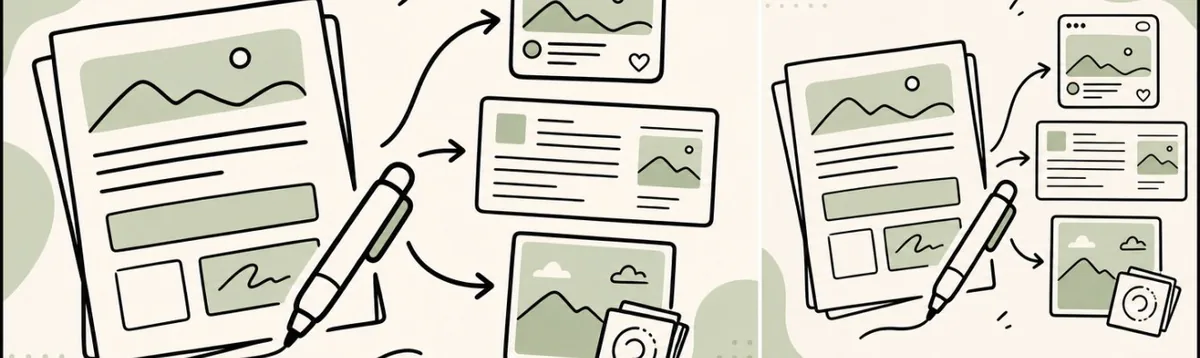
Xiaohongshu cards, WeChat long-form and Live Photo layouts in one page — write it, ship it
One Markdown file, three platforms: this 554-star tool squeezes all the layout work into a single page
No backend at all: a pure frontend that generates iPhone Live Photos and packages them as .pvt
Xiaohongshu cards, WeChat long-form and Live Photo layouts in one page — write it, ship it
1. Opening: one Markdown file, three platforms, stop opening five tools
When you write a piece of content, the real time sink is rarely the writing — it's what comes after. Split the Markdown into nine Xiaohongshu image cards, paste the styling into WeChat, then turn the video into an iPhone Live Photo. Most creators bounce between three or four tools, copying and pasting, re-cropping images, re-uploading video, re-picking a cover. By the end of a project, the body text took a fraction of the time while layout ate two or three hours.
"Write Then Publish" pulls that last mile into a single page: one body of text switches between image cards, WeChat long-form, downloadable images and Live Photo layout, and everything is previewed in the same workspace before export. The project has 554 stars on GitHub and is built purely with frontend HTML/CSS/JS — no backend required to produce 1728×2304 PNG cards, a full ZIP batch and .pvt Live Photo bundles.
2. Positioning: it walks the stretch that comes after writing
"Write Then Publish" doesn't generate content for you. It focuses on splitting into formats, layout, asset handling, format reuse and pre-publish confirmation. Its core features boil down to four keywords: local-first (Live Photo is composed in the browser, the source video never leaves the device), one source, many formats (the same body switches between image cards and WeChat long-form without rewriting), two-way Obsidian sync (it reads ![[image.png]] references and writes back when it can, degrading to a ZIP when it can't), and broad format coverage (standard PNG, batch ZIP, long images and .pvt bundles all covered).

3. Core features in depth
1. One body of text, two outputs
Write the Markdown once in the left editor, and the right preview can toggle between "image cards" and "WeChat long-form". Toggling only changes the output form, never the body. Image card mode paginates at the 1728×2304 PNG standard with body text at size 34 by default, and supports headings, quotes, accent colors, avatars and mixed image layout; WeChat long-form mode keeps the Markdown structure and lets you adjust theme, font, font size and theme color, export a long PNG, copy rich text, or sync to the WeChat draft box in the macOS local build. Syncing only creates or updates a draft — it never publishes directly.
2. Upload an image, lay it out immediately
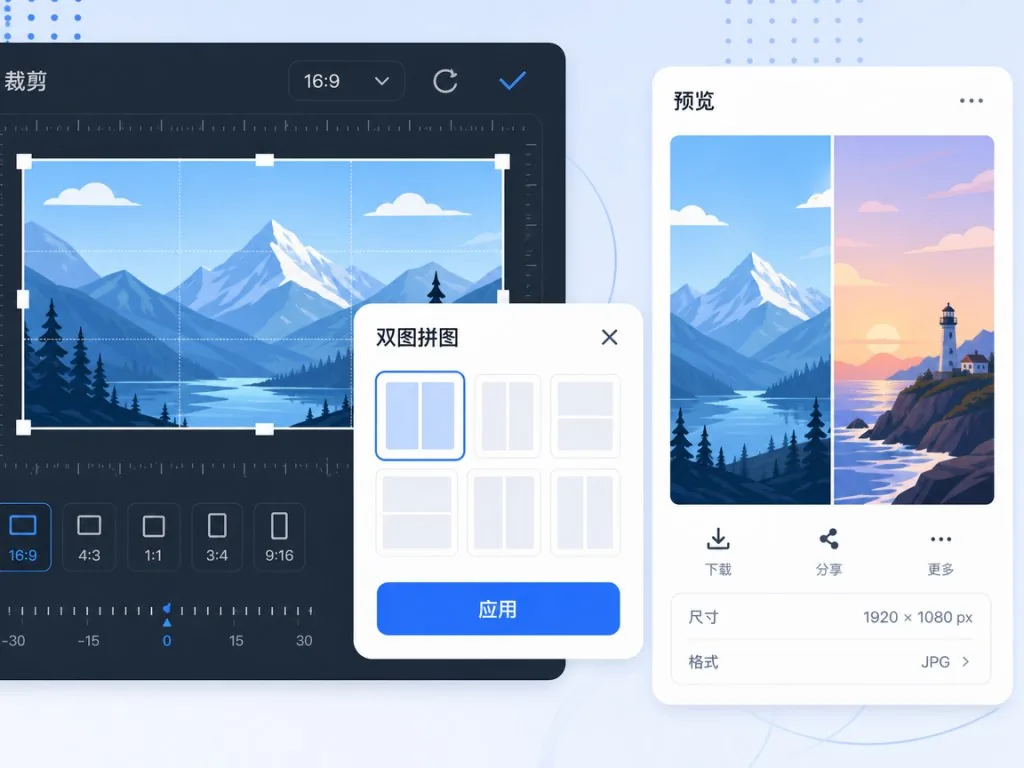
Upload, paste, drag-and-drop and batch import are all supported; in the preview area images can be dragged into place, realigned and resized directly. Crop ratios cover free, original, 1:1, 4:3, 16:9, 3:4 and 9:16, and they crop without stretching; high-resolution originals are redrawn rather than compressed by being composited into a card. The two-image collage is a highlight: click the + on an image's right edge in the preview to place two side by side, then change the overall ratio (16:9 / 3:2 / 4:3 / 1:1), swap left and right, crop each one separately or delete one, all inside the dialog. The dialog behaves like a draft — closing it rolls everything back.
3. Live Photo generated locally in the browser
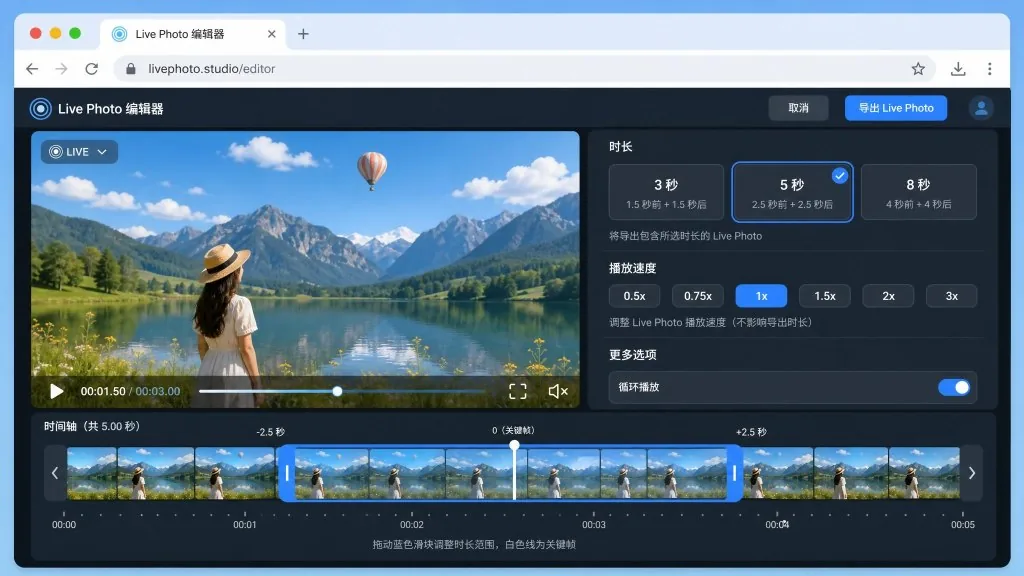
Browsers that support WebCodecs handle frame composition, the cover frame, Apple pairing metadata and .pvt packaging on the page itself, so the source video never leaves the device. The editor puts duration (3 / 5 / 8 seconds), playback speed (original / 1.5× / 2× / 3×), aspect ratio, clip selection and a sound toggle on the same screen: the faster the speed, the longer the segment pulled from the source, and the resulting duration always shows next to the copy. When the source footage can't fit a given option, that option is greyed out with a note on how many seconds short you are, and your current selection stays untouched. After export, the ZIP is named flat by page number, and Live Photo bundles sit alongside ordinary images rather than being buried in a subfolder.
4. Two-way Obsidian sync and graceful degradation
It reads ![[image.png]], ![[attachments/image.png]] and standard Markdown image references; with directory write access it saves into 写了就发/ and 写了就发/附件/ (the project's main folder and its attachments folder), and when permissions are insufficient it explicitly degrades to Markdown plus an attachment ZIP instead of failing silently. The vault must be authorized by the user, and the online page never uploads the whole directory to the project's server.
4. Technical highlights and performance numbers
The stack is vanilla HTML/CSS/JS + Canvas 2D + WebCodecs + mp4box.js + mp4-muxer + html2canvas + JSZip — the entire layout and Live Photo generation runs on the frontend with no backend service involved. Accounts and cloud fallback are filled in with Supabase and Row Level Security (isolated by auth.uid()).
The performance numbers come from the live page: in full screen, image card mode keeps the full editor on the left and shows nine cards side by side in three columns on the right (1728×2304 PNG each); the batch preview panel explicitly lists 1 Live Photo plus 12 high-resolution images, all packaged in page order. H.264 video has to be re-encoded because it gets composited into the card, while audio tracks are passed through untouched when compatible.
5. Use cases and audience
- Heavy Xiaohongshu creators: one Markdown file splits straight into nine image cards, with cover, accent color and avatar configured on the same page, then export PNGs or the whole ZIP.
- People publishing to both WeChat and Xiaohongshu: the same long-form article, edited on the left and previewed by toggling on the right — copy rich text for WeChat, export the card set for Xiaohongshu, skipping copy-paste and a second layout pass.
- Obsidian writers distributing to multiple platforms: finish writing in the vault, pull Wiki-style references in to sync assets, write back to the vault when possible and take the ZIP when not.
- Live Photo video creators: 3 / 5 / 8 second durations plus speed editing happen in the browser,
.pvtis generated locally, and AirDropping it to an iPhone lets a long-press restore the motion.
Who it's not for: teams that need automatic copywriting, fully offline operation, or multi-seat SaaS collaboration (the license explicitly forbids commercial use).

6. Comparison
| Capability | Write Then Publish | Generic Markdown layout tools | Standalone Live Photo generators |
|---|---|---|---|
| Xiaohongshu card pagination | ✅ built-in 1728×2304 standard | ❌ mostly manual slicing | ❌ |
| WeChat rich text export | ✅ with theme / font settings | partial | ❌ |
| Live Photo generated locally in browser | ✅ WebCodecs, source never leaves the device | ❌ | mostly requires cloud upload |
| Speed + clip selection | ✅ 3 durations + 4 speeds | ❌ | unsupported in most |
| Two-way Obsidian sync | ✅ explicit ZIP fallback on write-back failure | ❌ | ❌ |
| Pure frontend, zero backend | ✅ vanilla HTML/CSS/JS | most need a framework | ❌ |
Against generic tools, "Write Then Publish" squeezes Xiaohongshu cards, WeChat long-form and Live Photo into one workspace; against standalone Live Photo generators, it keeps video composition in the browser and preserves Apple pairing metadata by shipping the whole .pvt bundle.
7. How to get started quickly
Try it online at fawen.fun. To run it locally:
git clone https://github.com/fxyadela/write-then-publish.git
cd write-then-publish
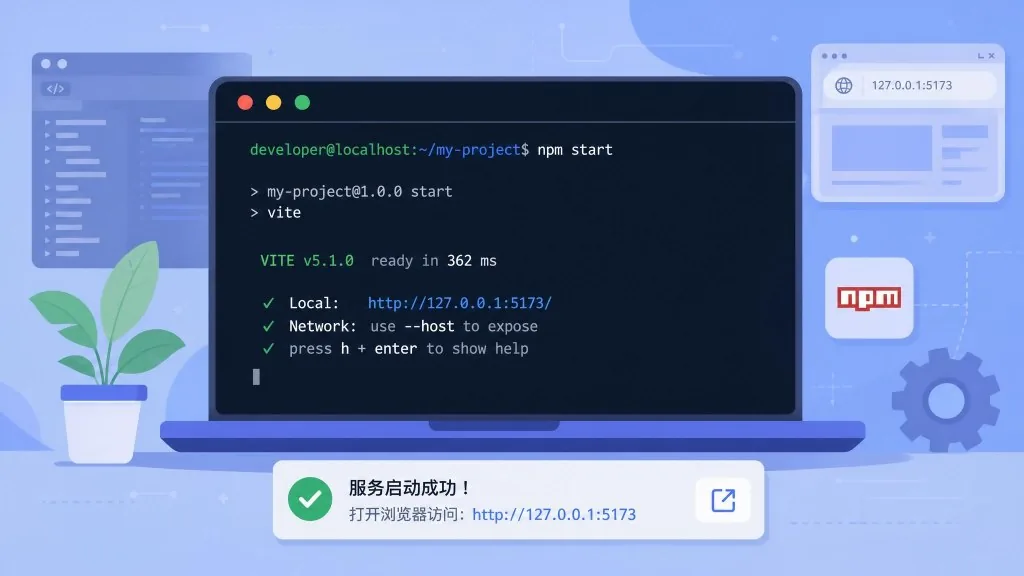
npm start
Open http://127.0.0.1:5173/ and keep the terminal window open; if you only need basic editing and image export, double-clicking index.html works too. Mac users can double-click the bundled 启动写了就发.command launcher to start it; for a local build with no account, use 启动写了就发本地版.command and the data stays only in the browser storage of that Mac.
Minimal working example: paste Markdown on the left, choose the "image cards" preview on the right, click the insert image button to upload or drag images in, adjust crop ratio and position, then export a PNG. When hooking up Obsidian, authorize the vault directory in settings — it writes back when it can, and automatically switches to a ZIP when it can't, without making changes on your behalf.
8. Takeaways and what to do next
What "Write Then Publish" solves isn't "how to write" but "how to spend less effort after writing". One Markdown file, and a single page handles image cards, WeChat long-form, downloadable images and Live Photo layout, with the source video never leaving the device and everything previewed before export. For independent creators running both Xiaohongshu and WeChat accounts, this is a practical tool that pulls the last mile into one workspace.
Suggested workflow: run the whole flow once in guest mode, confirm your browser supports WebCodecs (recent Chrome / Edge / Safari), then enable Supabase account sync or two-way Obsidian sync as needed; actively export Markdown and attachments for anything important instead of relying on browser storage.
Project: github.com/fxyadela/write-then-publish, online version: fawen.fun. One piece of content is written — stop opening five tools to lay it out.
#write-then-publish #WriteThenPublish #fxyadela #AIAgent #AIWorkflow #Automation #OpenSource #GitHub