
Title options (pick 1 of 3)
My private stash of 5 open-source tools that finally made clipboard and screenshots feel effortless
Cross-device sync plus screenshot and screen recording: 5 open-source projects I use every single day
So good. Five open-source tools that connect your clipboard, tasks and screenshots
1. Opening: stop fiddling with this by hand
You just copied a block of text on your Mac, and to get it to your phone you open WeChat, send it to yourself, then paste. You take a screenshot on Windows and want it in your Mac timeline, so you save it, AirDrop it, then drag it into Finder. Your task list lives in both Google Tasks and Microsoft To Do; you add one item, forget to sync, and the next day you find out you skipped it. Both macOS screenshot apps you tried charge money, and you're wary of swapping in a lightweight alternative. All these fragmented sync, screenshot and OCR needs actually have open-source answers. Below are the 5 projects that live at the bottom of my drawer.
2. Projects at a glance
| Repository | Stars | Main language | One-line pitch |
|---|---|---|---|
| uniclipboard/uniclipboard | 1.7k | Rust | Cross-device clipboard sync with end-to-end encryption |
| CrossPaste/crosspaste-desktop | 2.5k | Kotlin | Clipboard sync with built-in OCR and MCP server |
| simonchai-tw/tasks-todo-sync | 21 | JavaScript | Two-way sync between Google Tasks and Microsoft To Do |
| duongductrong/Snapzy | 3.1k | Swift | Native macOS screenshot and recording tool |
| lzhgus/Capso | 1.3k | Swift | Free open-source replacement for macOS capture |
3. Project breakdown
uniclipboard/uniclipboard — cross-device clipboard, end-to-end encrypted
UniClipboard is a privacy-first clipboard sync tool. It uses peer-to-peer connections to sync text, images and files across devices in real time, with the entire data path encrypted so that only your devices can decrypt it — no cloud account, no central server, and neither the server nor the network layer can see the content. It supports Windows, macOS and Linux desktop, and iOS and Android can join through a LAN compatibility mode.
Technical highlights: local-first architecture, all traffic over encrypted channels; mobile clients use a local-network compatibility mode with no registration required.
- Who it's for: developers who move text and images between multiple computers and phones constantly, and care about privacy
- Who it's not for: people who work on a single device and don't need cross-device sync
Minimal setup
Download the installer for your platform and launch it.
On the primary device, create a Space:
Open the app -> Create a Space -> grab the invite code
On the other devices, join:
Open the app -> Join via Invitation -> paste the invite code
After joining, copy a block of text and paste it on another device — it's there.
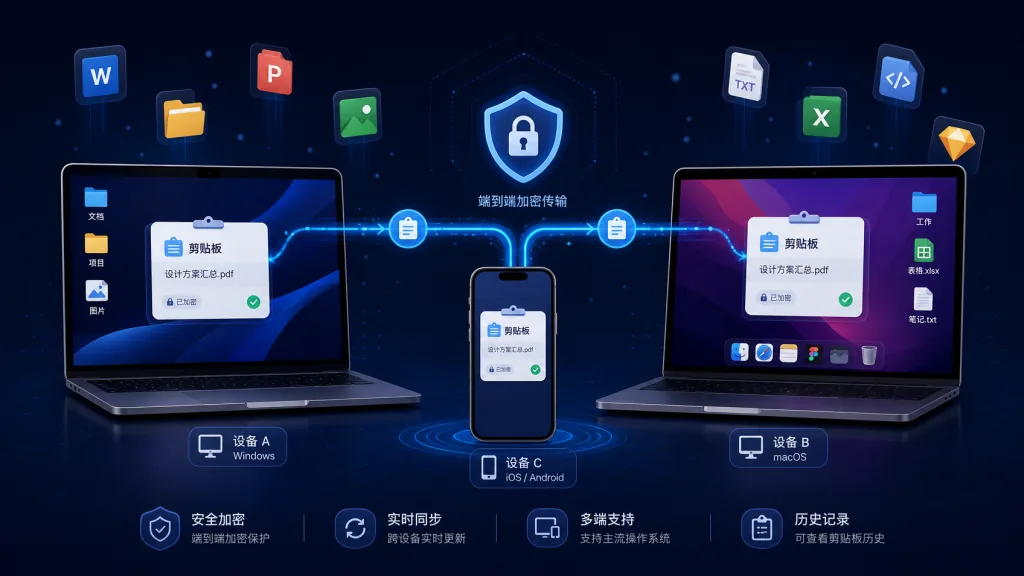
Repo: https://github.com/uniclipboard/uniclipboard
CrossPaste/crosspaste-desktop — clipboard sync with built-in OCR and MCP
CrossPaste is a desktop clipboard sync tool built around pure local network, zero cloud. It handles text, colors, URLs, HTML, RTF, images, files and more, and protects data with asymmetric encryption. What sets it apart from other clipboard tools is built-in local OCR — text inside a screenshot is recognized and copied directly, never uploaded. It also exposes an MCP server, so AI assistants like Claude can query your clipboard history. A Chrome extension and a CLI tool round it out.
Technical highlights: local OCR uses system capabilities, so screenshots never leave the device; MCP Server exposes clipboard history to AI assistants.
- Who it's for: people who treat the clipboard as their productivity hub and want AI to read that history directly
- Who it's not for: people on a single device, or who need sync across a wide area network
Minimal setup
Download and install from Releases:
Go to https://crosspaste.com/en/download and grab the build for your platform
Run it in development mode:
git clone https://github.com/CrossPaste/crosspaste-desktop
cd crosspaste-desktop
./gradlew app:run
==Note: the first build downloads JBR and Gradle dependencies.==
Repo: https://github.com/CrossPaste/crosspaste-desktop
simonchai-tw/tasks-todo-sync — a two-way bridge between Google Tasks and To Do
Tasks–To Do Sync solves one specific problem: there is no official sync between Google Tasks and Microsoft To Do. It builds a private bridge with Google Apps Script and syncs tasks both ways — creation, edits, completion state, notes, due dates, subtasks and personal lists all come along — and it is fully self-hosted, so task data never passes through a third-party server. The sync trigger runs every 10 minutes, so ordinary changes reach the other side within 0–10 minutes.
Technical highlights: built on Google Apps Script, no server needed; lists on both sides are discovered and paired automatically.
- Who it's for: heavy task-management users who straddle both the Android/Gemini and Windows/Outlook ecosystems
- Who it's not for: people who manage tasks in a single ecosystem, or who can't tolerate any sync latency
Minimal setup
Deploy following the official quick guide:
Open https://simonchai-tw.github.io/tasks-todo-sync/quick-start.html
Clone the Apps Script project -> configure API authorization on both sides -> enable the trigger
Once deployed, a task added in Google Tasks shows up in Microsoft To Do automatically.
Repo: https://github.com/simonchai-tw/tasks-todo-sync
duongductrong/Snapzy — native macOS capture and recording
Snapzy is a native macOS screenshot and screen recording tool, positioned as an open-source alternative to CleanShot X. Built with SwiftUI + AppKit + ScreenCaptureKit + Vision, it supports full screen, window and scrolling captures, and lets you annotate inline before you even save. Recording picks up system audio plus microphone, and supports iPhone Continuity Camera as a picture-in-picture webcam. The annotation editor offers shapes, arrows, text, watermarks, mosaic and automatic sensitive-data redaction. OCR runs through Apple Vision or a custom OpenAI-compatible endpoint.
Technical highlights: capture, recording and annotation in one flow; Application Capture mode can catch third-party menu bar popups; the A key crops straight to content.
- Who it's for: macOS users who screenshot, record and write tutorials or technical docs at high frequency every day
- Who it's not for: Windows or Linux only users, or people with professional-grade frame-rate requirements
Minimal setup
Download the DMG from Releases:
Go to https://github.com/duongductrong/Snapzy/releases and download the latest version
Or use Homebrew:
brew install --cask snapzy
After installing, grant screen recording permission and click the menu bar icon.
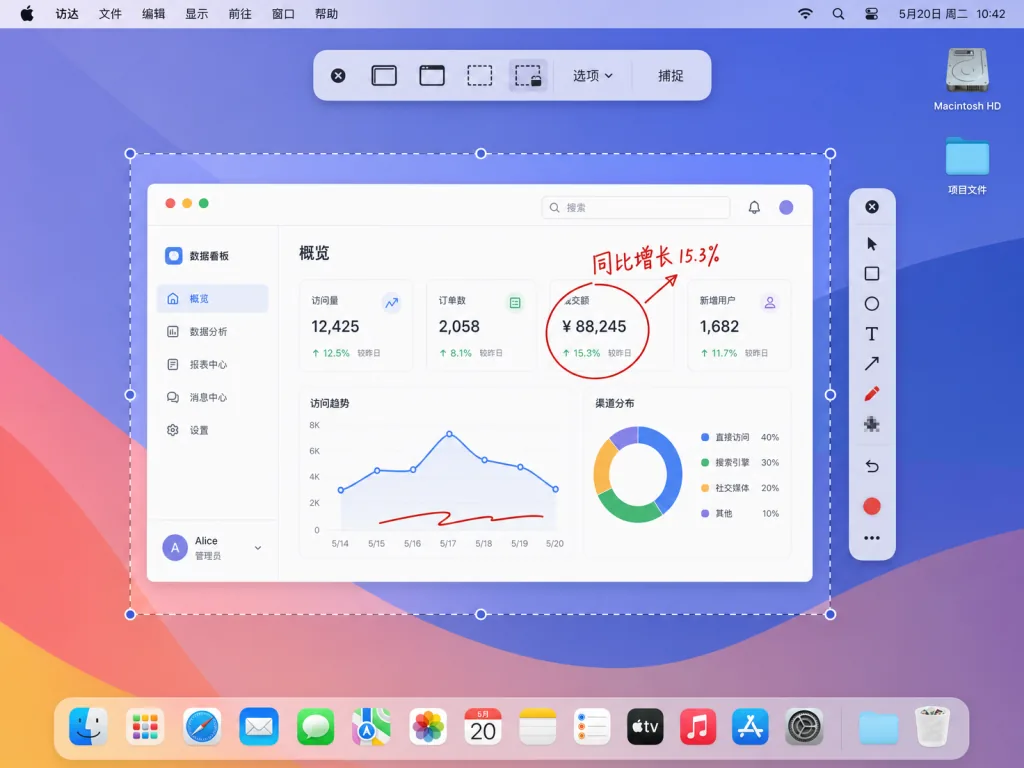
Repo: https://github.com/duongductrong/Snapzy
lzhgus/Capso — a free open-source CleanShot X alternative
Capso is another native macOS screenshot and recording tool, built on Swift 6.0 and SwiftUI, and it's also positioned as a free CleanShot X alternative. It offers a single floating HUD toolbar where you can switch between region, full screen, window, scrolling, timed, OCR and recording modes with one click. You can annotate inline right after capturing, skipping the save-then-open-an-editor step. Recording supports webcam picture-in-picture (4 shapes), system audio plus microphone, countdown, and pause/restart/delete. OCR runs locally and drops the result straight into the clipboard. The whole architecture splits CaptureKit, AnnotationKit and OCRKit into reusable SPM packages.
Technical highlights: the R key cycles through presets like 1:1, 16:9 and 1920×1080; a built-in Quick Access floating window lets you drag results into other apps.
- Who it's for: macOS users who want one free tool covering capture, annotation, recording and OCR end to end
- Who it's not for: people still on macOS 14 or lower (==Capso requires macOS 15.0+==)
Minimal setup
Download the DMG from Releases:
Go to https://github.com/lzhgus/Capso/releases/latest and download the signed DMG
Or use Homebrew:
brew tap lzhgus/tap
brew install --cask capso
On first launch, grant screen recording, camera and microphone permissions.
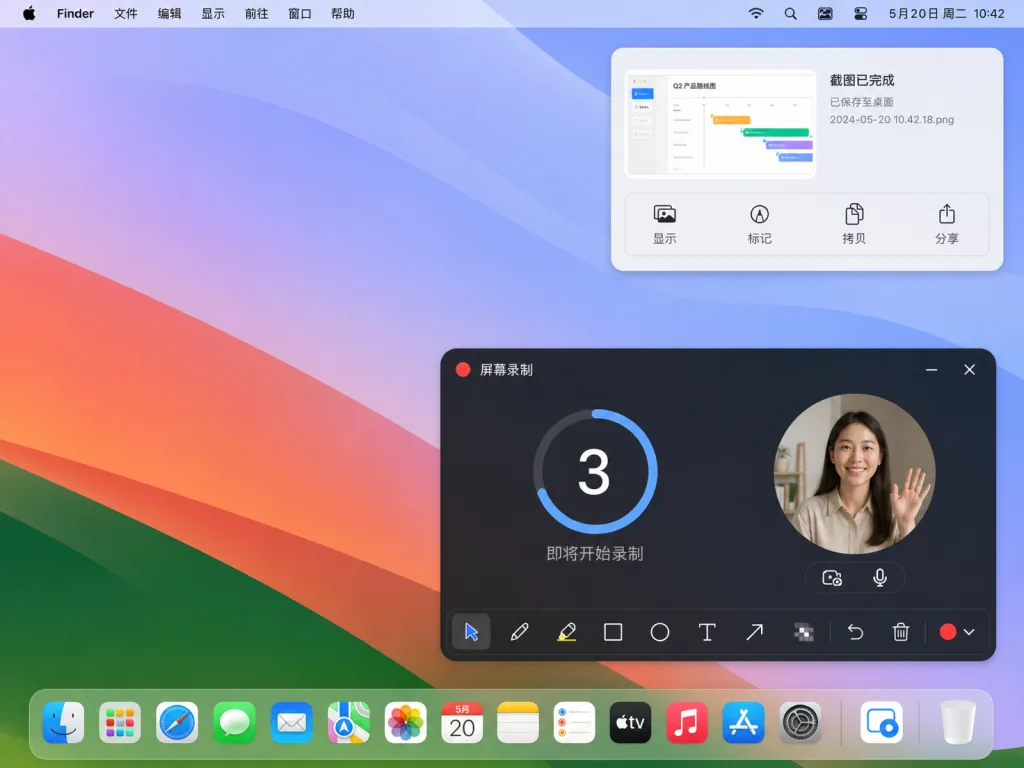
Repo: https://github.com/lzhgus/Capso
4. Summary and next steps
If you only install one thing first, pick either Snapzy or Capso — depending on whether you prefer Snapzy's scrolling capture plus application window capture, or Capso's inline annotation plus Quick Access window. If you're a heavy cross-device clipboard user, install UniClipboard first; if you want AI to read clipboard history directly, layer CrossPaste on top. Finally, deploy tasks-todo-sync as needed — it suits people who genuinely live across both the Google and Microsoft ecosystems.
#AIVideoEditing #ScriptedVideo #TalkingHeadVideo #Uniclipboard #CrosspasteDesktop #TasksTodoSync #Snapzy #Capso #crosspaste-desktop #tasks-todo-sync