
Candidate titles (pick 1 of 3)
6 open-source tools I reach for every single day — and every one of them sticks
Six terminal and desktop gems I keep to myself: open source, and genuinely good
From terminal to system polish: these 6 open-source projects are in my daily rotation
1. Opening: why you need this tool?
You know these moments. You're writing code and the terminal color scheme is ugly and the themes are a mess, and selecting text to copy means dragging a box around it first. You're writing a tech post and want to turn ls output into an image for your blog, so you screenshot the whole screen and crop it. You want to explain to a colleague how yesterday's diff went from zero to one, and five minutes of hand-waving doesn't get it across. On Windows you want a nicer taskbar but the only route is installing an entire suite. Or your freshly set-up Win10 restarts for updates at 2 a.m. and kicks you out of a game.
These six projects exist to hit exactly those specific snags.
2. Project overview
| Repo | Stars | Language | One-line pitch |
|---|---|---|---|
| tw93/Kaku | 5955 | Rust | A macOS terminal that just works out of the box |
| homeport/termshot | 973 | Go | Turn terminal output into an image with one command |
| unhappychoice/gitlogue | 4992 | Rust | A cinematic Git commit replayer |
| Maplespe/DWMBlurGlass | 4582 | C++ | Global title bar effects for Win10/11 |
| itsfatduck/optimizerDuck | 9612 | C# | Windows performance and privacy tuning |
| hhht110/UpdateLock | 173 | C++ | Single file to disable/restore Windows auto-update |
3. The projects
tw93/Kaku — an AI-friendly Mac terminal that works out of the box
This is a macOS terminal built for AI coding, running on the WezTerm core, and it does all the configuration chores for you: fonts, themes, shell integration, Mac keybindings. Drag it into Applications and go; if you want deep customization, you can still write Lua.
Its killer move is putting AI inside everyday operations: when a command fails, press Cmd + Shift + E and let the AI suggest a fix; type # describe what you want at the prompt and hit enter, and the AI writes the command straight at the cursor for you to review; Cmd + L opens a chat panel to talk about the error you just hit or the current project.
Who it's for: heavy AI-coding users on Mac, people running Claude Code / Codex / Gemini CLI. Who it's not for: Windows / Linux users (==macOS only for now==).
Minimum setup
One line to install:
brew install --cask kaku
On first launch, follow the prompts to finish shell integration; if tools are missing, run:
kaku init
Then type any command that errors in the terminal and press Cmd + Shift + E to watch the AI save you.
Repo: https://github.com/tw93/Kaku
homeport/termshot — turn terminal output straight into an image
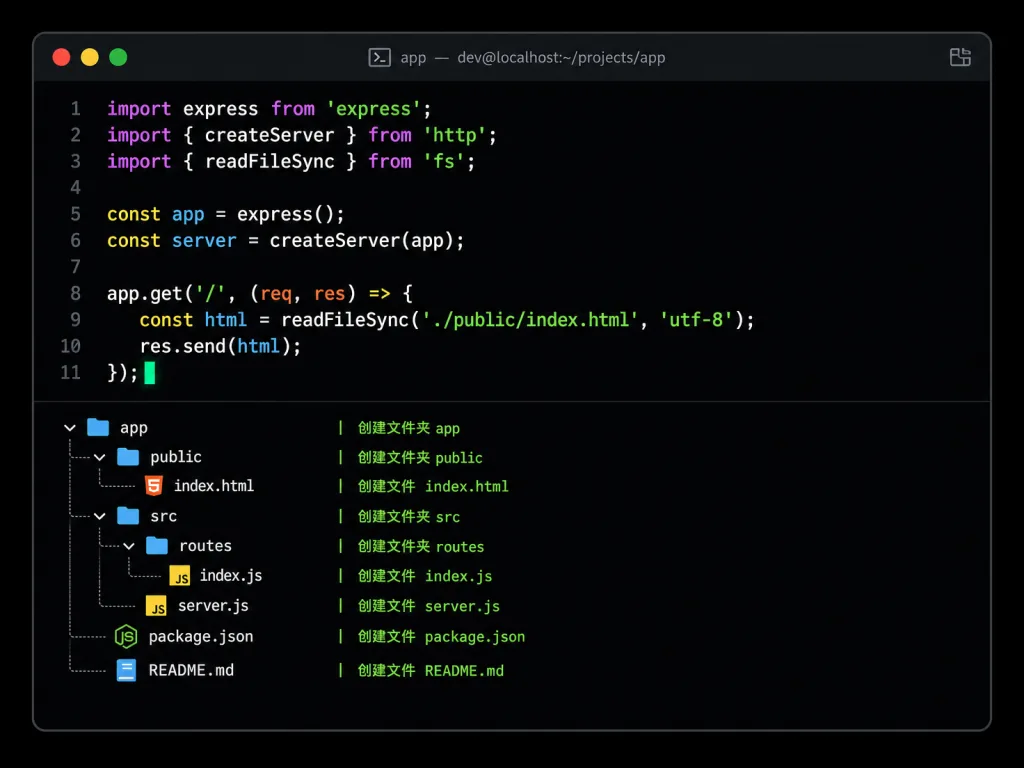
This is a command-line screenshot tool written in Go. It spins up a pseudo-terminal, runs whatever command you give it, and renders the ANSI-colored output as a PNG with a macOS window frame. Writing a README, publishing a tech post, or sending a colleague an error: no more opening a screenshot tool and cropping.
Unlike web tools such as carbon.now.sh, it parses real ANSI escape codes, so colors come through faithfully instead of looking like pasted-on syntax highlighting.
Who it's for: people writing technical docs, building tutorials, or filling slides. Who it's not for: anyone needing long screenshots (==very long output wraps or overflows==).
Minimum setup
Install it:
brew install homeport/tap/termshot
To capture ls output:
termshot ls -a
To show the command itself as well:
termshot --show-cmd -- "ls -a"
Repo: https://github.com/homeport/termshot
unhappychoice/gitlogue — a cinematic Git commit replayer
This is a terminal tool that turns Git history into an animated short, written in Rust + tree-sitter, with syntax highlighting for 32 languages, 9 themes, a typewriter cursor and file-tree transitions.
It does more than show off: when walking through a code review, replay that contentious commit; when onboarding someone, use --commit HEAD~10..HEAD to show exactly how the project got where it is; for a tech talk, record it with asciinema and use that as your footage.
Who it's for: engineers who give tech talks often, tech leads running internal training, and people who treat their terminal as desktop decoration.
Who it's not for: anyone who just wants plain text out of git log --oneline.
Minimum setup
Install it:
brew install gitlogue
Run it inside any Git repo to enter screensaver mode and replay history at random:
gitlogue
To view a specific commit:
gitlogue --commit HEAD~3
Repo: https://github.com/unhappychoice/gitlogue
Maplespe/DWMBlurGlass — global title bar effects for Win10/11
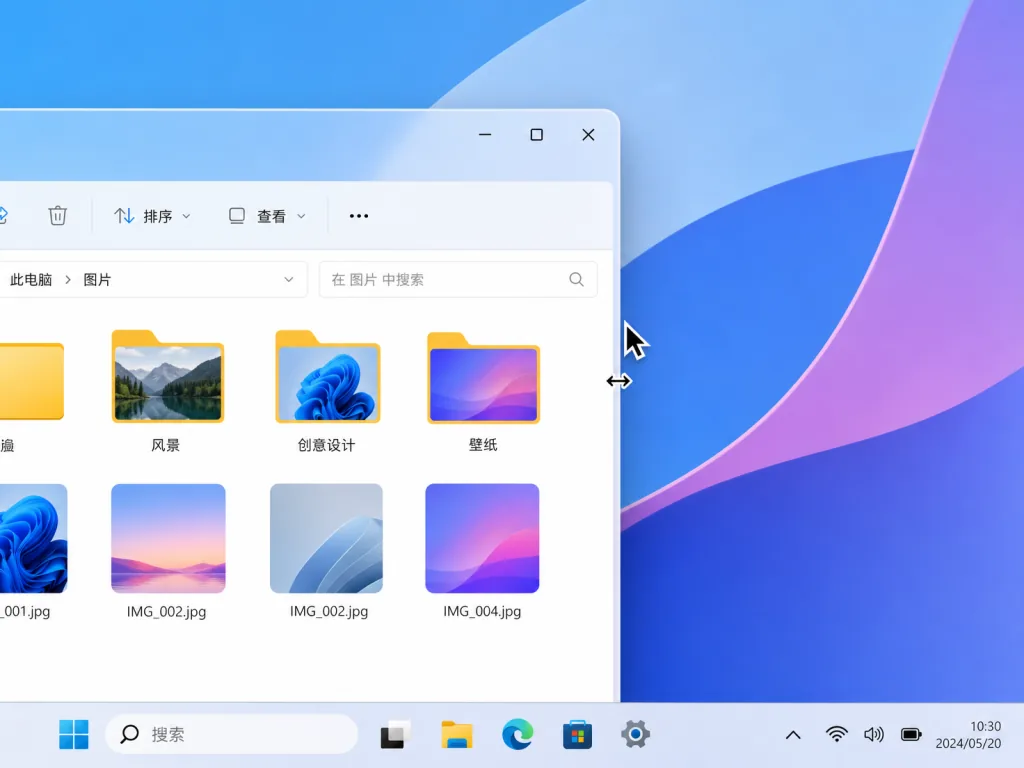
This is a Windows tool that beefs up DWM, applying Blur, Aero, Acrylic and Mica effects — Win11-style — to system title bars everywhere, down to Win10 2004.
Its distinguishing trait is that it modifies DWM itself rather than app rendering logic, so it coexists with third-party themes, ExplorerBlurMica and TranslucentFlyouts. Blur radius, blend color and text color are adjustable, and on Win10 you can even restore the Win7-style title bar button height.
Who it's for: people on Win10/Win11 who like the Mica / Acrylic look and want consistent frosted glass across the whole system. Who it's not for: MicaForEveryone users (==compatibility not guaranteed==).
Minimum setup
Grab the latest EXE from the Releases page — only from the official GitHub URL (==third-party mirrors have bundled malicious code; the README warns about this repeatedly==). Right-click, run as administrator, and tick the effects you want.
Uninstalling uses the same program and leaves nothing behind.
Repo: https://github.com/Maplespe/DWMBlurGlass
itsfatduck/optimizerDuck — a Windows performance and privacy housekeeper
This is an open-source system optimizer for Win10+, aimed squarely at everyday complaints like "my new machine got slow after six months" and "I can't turn off all this telemetry."
It groups the common tweaks into three tidy panels — performance, privacy, cleanup: kill telemetry, remove preinstalled apps, stop background services, clear temp files, adjust power plans. Every action shows what it changes and what it affects instead of being a black-box one-click "speed up" button.
Who it's for: people speeding up an old family PC, anyone sensitive about telemetry, and anyone who doesn't want a full suite like 360 or Huorong. Who it's not for: absolute beginners who refuse to touch the registry (==there's a GUI, but the backend still edits registry keys and services==).
Minimum setup
Download the latest release and click Next through the installer. The left side has three categories — Performance / Privacy / Debloat. Open each item, read the description, then tick it.
Every change can be reverted with one click, and original values are backed up beforehand.
Repo: https://github.com/itsfatduck/optimizerDuck
hhht110/UpdateLock — a single file to disable/restore Windows auto-update
This is a native C++/Win32 single-EXE tool that detects Win7 / Win10 / Win11 / Server 2016 and disables Windows Update through the matching registry policies — without ever calling PowerShell, reg.exe or sc.exe.
Three things make me trust it: it saves the original state before changing anything; it reads back and verifies after writing; and it rolls back on failure. On Win10 you can also tick "block upgrade to Win11," which matters enormously to people clinging to Win10.
Who it's for: gamers who don't want to be kicked offline by a 2 a.m. update, Win10 users who absolutely refuse Win11, and ops engineers who need a temporary freeze. Who it's not for: ==never run it while an update is installing or uninstalling== — they will conflict.
Minimum setup
Head to Releases and download the v3.1 EXE (the asset name is Chinese: "Win7-10-11 auto-update disabler v3.1"), right-click and run as administrator:
- Click "Disable updates" and wait for the program to report success.
- To restore, click "Restore updates."
- Win10 only: you'll see a "Block upgrade to Windows 11" button — tick it.
==Note: the author metadata is just a nickname and there's no formal signature, so SmartScreen may warn you==. Verify the SHA-256 against the GitHub Release to be safe.
Repo: https://github.com/hhht110/UpdateLock
4. Takeaways and what to do next
If you can only install two: Kaku for day-to-day coding comfort, termshot for day-to-day sharing speed. If you're on Windows, DWMBlurGlass + optimizerDuck + UpdateLock together clean up visuals, performance and update policy in one pass.
gitlogue leans toward toy territory, but a single replay replaces five minutes of talking during a tech talk — go deeper as needed.
#CLI #DevTools #FrontendDev #Kaku #Termshot #Gitlogue #Dwmblurglass #Optimizerduck #Updatelock #tw93