1. Opening: what if a tool could do this step for you…
You want to bump a tutorial to 1.5x speed. You're watching bullet comments and don't want to miss the good frame. You're hunting for an offline file across platforms and end up copying links one by one — the player itself has no unified control entry point, so you just keep clicking through settings. Worse, web players have no global control layer at all: volume, speed, screenshots and scrubbing sit in a different place on every site. For anyone who watches courses, livestreams or long videos every day, that friction keeps breaking your concentration.
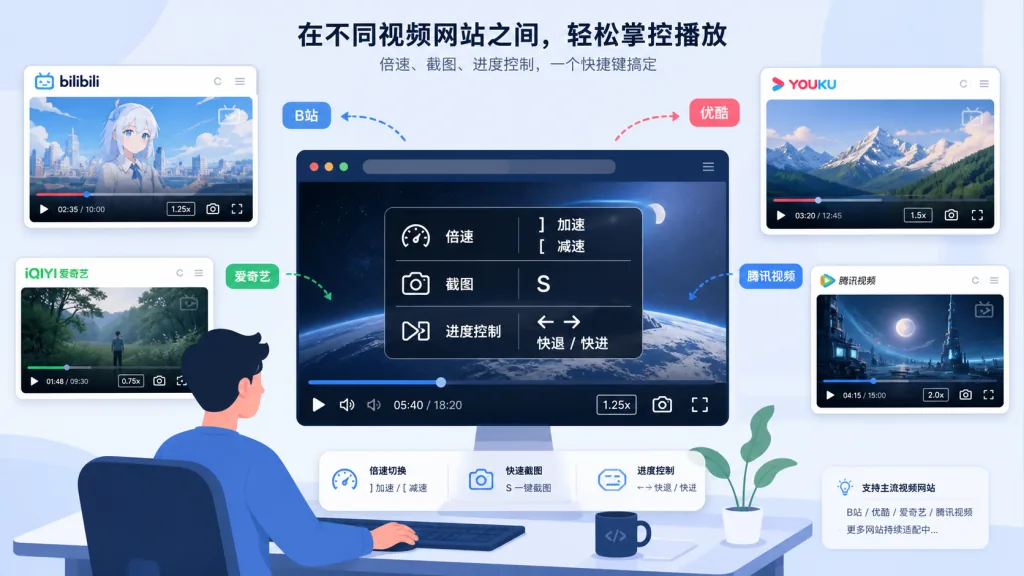
h5player for Tampermonkey provides a cross-site control layer: install a single JavaScript userscript and speed, screenshots, picture-in-picture, web fullscreen, picture adjustment, progress memory and audio/video download all sit behind the same shortcut set. The project has 3745 stars on GitHub and covers common audio/video sites such as Bilibili, YouTube, TED, Instagram and Twitter.
2. Project overview: what is it, exactly?
h5player is an enhancement script for HTML5 audio/video pages. Its core idea is not replacing a site's player, but adding a unified control layer on top of the existing <video> and audio instances on the page.
Four keywords describe it: site-wide coverage, keyboard first, cross-frame cooperation and configurable extensions. The project is written mainly in JavaScript, works in Chrome, Edge, Firefox, Safari, Opera and a number of Chinese browsers, and is injected as a userscript through Tampermonkey.
The project also offers custom configuration, a paid customization channel and a feature manual, so users can tune shortcuts, behavior and extensions per site.

3. Core features in depth
1. One shortcut set for every video
h5player detects the video and audio instances on a page and maps keyboard events onto playback control. Press C to speed up in 0.1 increments, X to slow down, Z to return to 1x; → and ← jump 5 seconds each, while Ctrl+→ and Ctrl+← jump 30 seconds.
That beats hunting through hidden menus on each site. The shortcuts also control volume, brightness, contrast, saturation, hue, blur, rotation and flip. For study sessions where you watch and take notes at the same time, you can keep your attention on the content instead of on player buttons.
2. It still works on messy page structures
Many video sites use iframes, Shadow DOM, dynamic loading or multiple player instances. h5player covers all of these, plus CORS-restricted pages, cross-tab picture-in-picture control and multi-instance setups.
The project also supports video zoom, web fullscreen, system picture-in-picture, progress tracking and playback-speed memory. Resuming from where you left off suits course series and long-form content.
3. Screenshots and frame-by-frame scrubbing
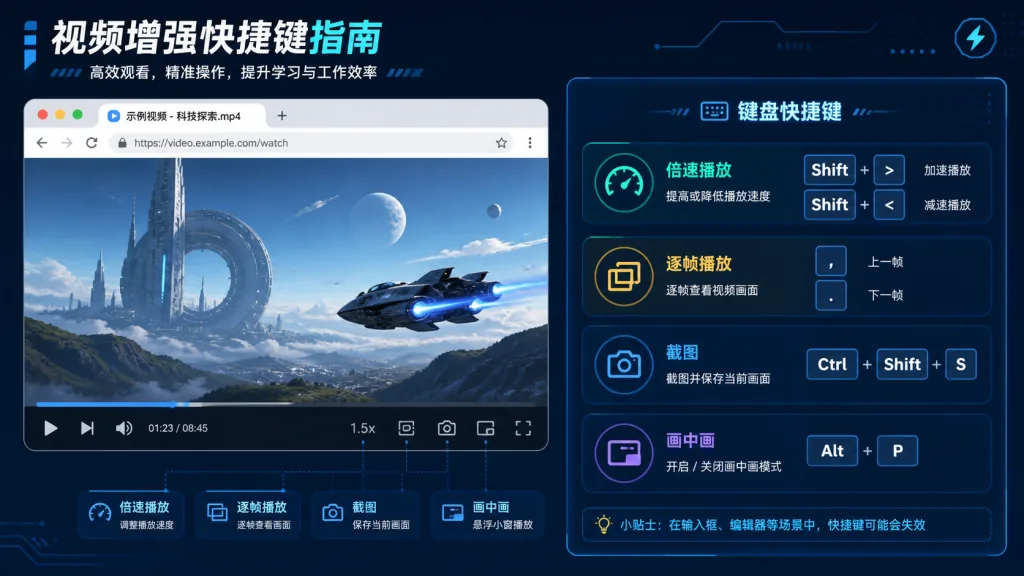
Press Shift+S to grab the current frame, and D / F to step to the previous or next frame — handy for saving a shot at the exact moment a subtitle or key action appears. Compared with tools that only record whole segments, screenshots are lighter and better suited to notes, bug reports and content thumbnails.
4. Offline media and livestream handling
The script offers experimental audio/video download, offline storage and livestream extraction. When watching public courses, public livestreams or short videos, you can save the media the way you need it. Download support depends on how each site is built and on its platform rules, so real-world availability comes down to the target site.
4. Technical highlights and performance data
h5player's architecture centers on a unified wrapper around browser media APIs, managing video instances across the page lifecycle. It supports HTML5 video sites, iframes, Shadow DOM and multi-instance environments, and lets you adjust per-site behavior through custom configuration.
The advantage is a single control entry point: speed, progress, volume, picture parameters and playback mode are all driven by one shortcut set, which reduces dependence on any single platform's UI changes. The README does not publish QPS, memory usage or unified latency figures, so do not treat it as a service-performance component; its value is browser-side interaction, not backend throughput.
5. Use cases and audience
- Online learning: watch open courses at 1.5x or faster, and use
D/Fto find key frames frame by frame. - Long videos and livestreams: cut down on clicking with progress jumps, zoom, picture-in-picture and automatic resume.
- Content curation and research: screenshot key frames and use custom configuration to adapt to different sites.
- Cross-platform viewing: manage playback on Bilibili, YouTube, TED and others from one place in the browser.
It suits users who are comfortable with browser extensions and care about efficiency and keyboard operation. It is a poor fit for teams that need batch transcoding, server-grade media processing or strict copyright compliance; download and stream-extraction features should respect the target site's terms and local law.

6. Comparison with alternatives
| Tool | Primary role | Strengths | Limitations |
|---|---|---|---|
| h5player | Cross-site playback enhancement | Unified shortcuts, works with iframes, Shadow DOM, picture-in-picture and custom config | Requires Tampermonkey; some download features are experimental |
| Built-in browser picture-in-picture | Single system-level playback capability | Easy to enable, stable system support | Limited speed, screenshot, frame-stepping and picture controls |
| Per-site userscripts | Single-site enhancement | Deep features for one specific platform | Inconsistent config across sites, high migration cost |
| Downloaders or screen recorders | Media preservation | Good for archiving and transcoding | Higher install, storage and authorization requirements |
The case for h5player is simple: it does not ask you to install a plugin site by site, and it does not force you to change what you watch; one script gives you a single operating entry point.

7. Getting started fast
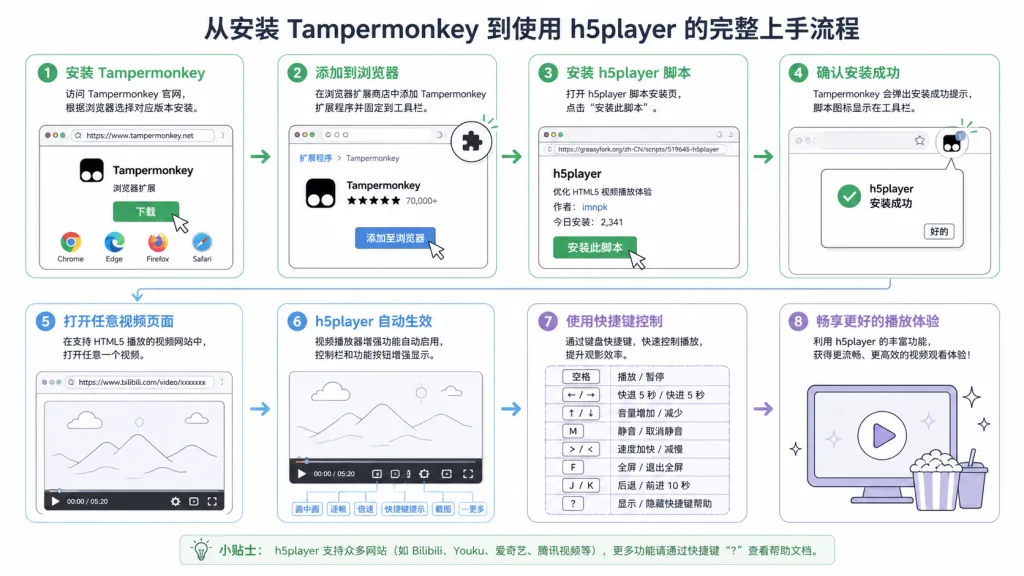
- Install Tampermonkey in Chrome, Edge, Firefox or any other browser that supports extensions.
- Open h5player.anzz.top and follow the installation guide, or go straight to the one-click install script.
- Confirm the install in Tampermonkey and refresh the audio/video site.
- Start with
C,X,Zand the arrow keys, then tryShift+Pfor picture-in-picture andShift+Sto grab the screen. - When you need to tweak behavior, read the custom configuration docs; if a site behaves oddly, open a GitHub Issue.
Fix your everyday shortcuts first, then enable picture-in-picture, progress memory and download step by step — configuring everything at once tends to interfere with the page's own behavior.
8. Summary and next steps
h5player's core value is pulling playback control scattered across different video sites into one shortcut set: speed, screenshots, frame stepping, picture-in-picture, cross-tab control, progress memory, offline media handling and custom configuration. 3745 stars show it has built a stable open-source user base, but download features still need to respect platform rules.
If you regularly watch open courses, livestreams or long videos, install the script and spend a week with the shortcuts you use most: C, X, Z, the arrow keys and Shift+P. Move on to custom configuration only when you need deeper adaptation, and do not turn on every experimental capability from day one.
Project links: GitHub repo | Official site | Chinese docs
One-line pitch: one script takes over the playback tempo of your entire browser.