Title options (pick 1 of 3)
macUSB: the 3,200-star Mac boot-drive tool that handles macOS/Linux/Windows from one app
macUSB turns Apple Silicon legacy boot drives into a wizard: no command line, no pitfalls, one straight-through burn
From Tiger 10.4 to Windows 11: how did macUSB become the ceiling of Mac boot-drive tools?
macUSB: the 3,200-star Mac boot-drive tool that handles macOS/Linux/Windows from one app
1. Opening: why you need this tool
Anyone who does system maintenance has been here. A Mac dies on you and you want a rescue USB, only to find that macOS Catalina and older installers simply won't run createinstallmedia on Apple Silicon. You try Ubuntu to test something and Disk Utility throws "unrecognized disk". You go to write a Windows 11 installer and a 4GB file hits the FAT32 limit and fails outright. Search online and there are plenty of tutorials, but every one comes with a "works on macOS xxx" disclaimer, and the commands you copy fail nine times out of ten. What you want is a tool that has already stepped in every pothole for you, has a clean UI, and runs the whole path from download to burn in one go. That is the scenario macUSB was built for.
2. At a glance: what this project is
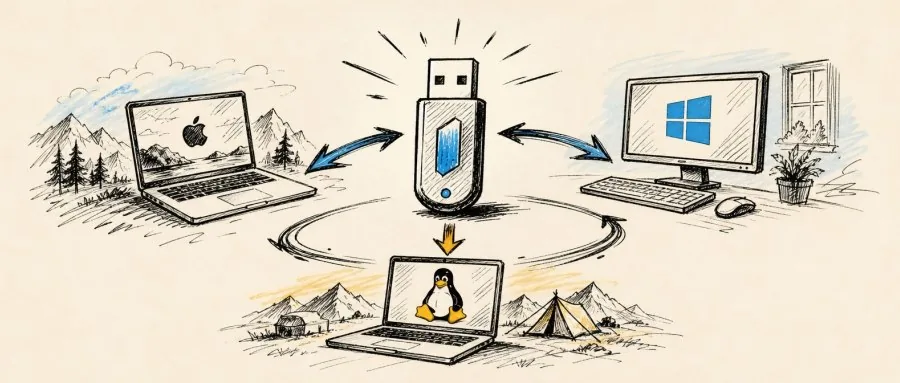
macUSB is a full-featured boot-drive creation tool built specifically for macOS, with 3,203 stars on GitHub and native support for both Apple Silicon and Intel. It turns "download the installer -> verify the file -> burn to USB" into a visual wizard, covering every generation from macOS Tiger 10.4 through macOS Golden Gate 27, plus 19 mainstream Linux distributions and complete installer drives from Windows XP through 11.
3. Core features in depth
1. Built-in macOS downloader
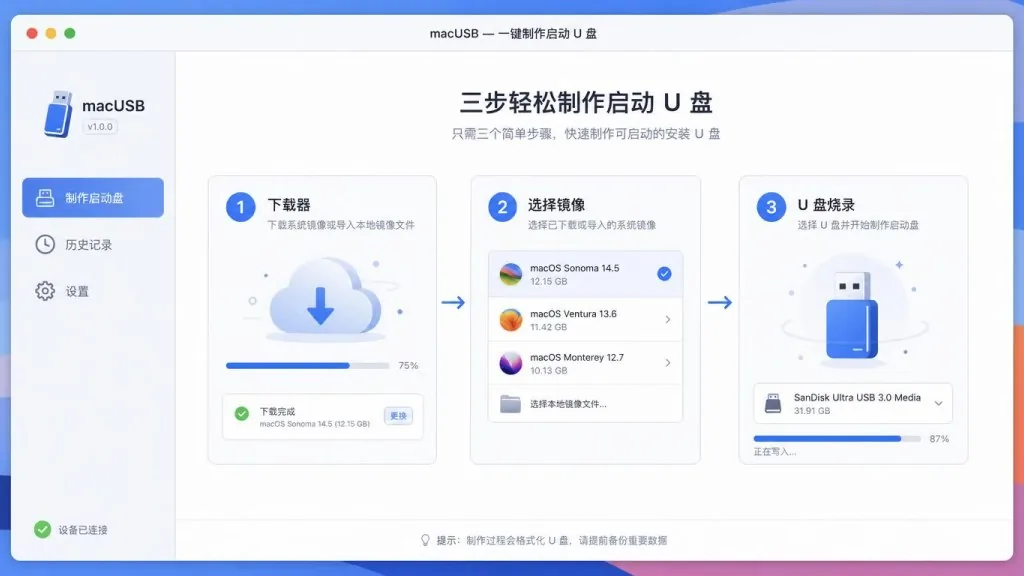
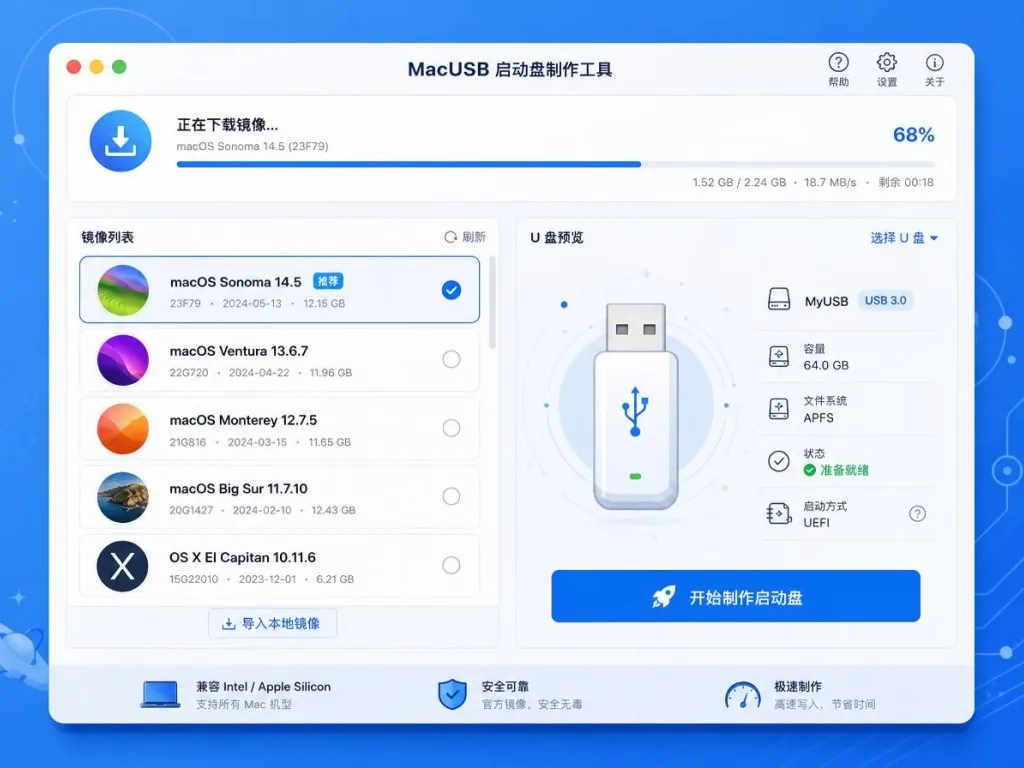
macUSB has a download channel that pulls macOS installers directly from Apple's servers, including public betas. Unlike the traditional softwareupdate --fetch-full-installer, it lists the available versions in the UI, then automatically verifies, downloads and saves them as a read-only DMG; when the download finishes you go straight into burning, with no back-and-forth hunting for images or sources.
2. Full local image format support
For users who already have image files, macUSB accepts the four macOS source formats .dmg, .cdr, .iso and .app, plus any Linux/Windows .iso. More useful is SHA-256 verification: .dmg, .cdr and .iso files are hashed automatically, and manually selected .img files can be verified too, so you don't discover a corrupt source halfway through a burn.
3. Legacy system compatibility on Apple Silicon
Compatibility handling is the biggest headache when making legacy boot drives on Apple Silicon. macUSB detects the target system version automatically and prompts you to install Rosetta for the Intel-only createinstallmedia tool (Yosemite through Catalina). If the system is something as new as macOS Golden Gate 27, it can skip the traditional install flow and take an adapted path directly.
4. Smarter Windows burning
The biggest roadblock in Windows burning is the FAT32 4GB per-file limit. When macUSB detects that install.wim exceeds it, it automatically calls wimlib to split the image into .swm volumes, with no manual intervention. For Windows 11's TPM and Secure Boot hardware requirements, it can generate an Autounattend.xml to skip the checks, and can bypass the Microsoft account requirement, disable automatic BitLocker encryption, and skip privacy settings and other first-boot configuration.
4. Technical highlights and performance data
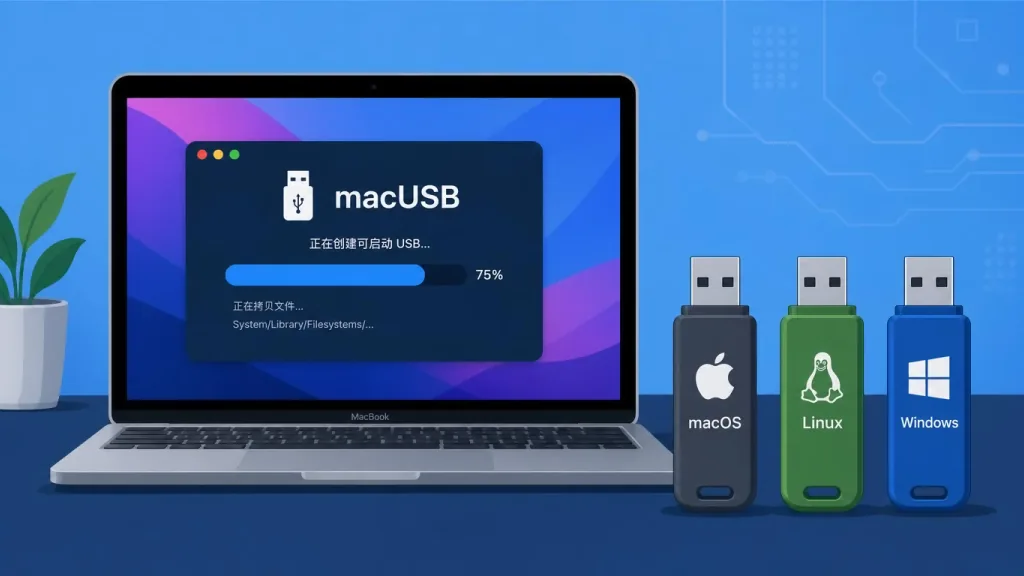
macUSB is written natively in Swift and is Apple-notarized, so there is no extra gatekeeping on the security and compliance side. Architecturally it targets both Apple Silicon and Intel, with macOS Sonoma 14.6 as the minimum requirement and USB 3.0 or better recommended for the drive. Linux compatibility has been tested across 19 distributions (latest as of April 30, 2026), validated on three representative machines: a 2017 MacBook Air (UEFI), a Dell OptiPlex 5040 (UEFI) and an ASUS F52Q (Legacy BIOS). Windows boot modes are detected automatically: Legacy BIOS (Vista/7/Server 2008 R2), Legacy BIOS or UEFI (8/8.1/10/Server 2012-2022), and UEFI only (11/Server 2025). For Legacy BIOS scenarios it automatically installs its own macUSBoot bootloader.
5. Use cases and who it's for
- IT operations and sysadmins: the people who have to make cross-platform boot drives in bulk or repeatedly; macUSB replaces several command-line scripts with one app;
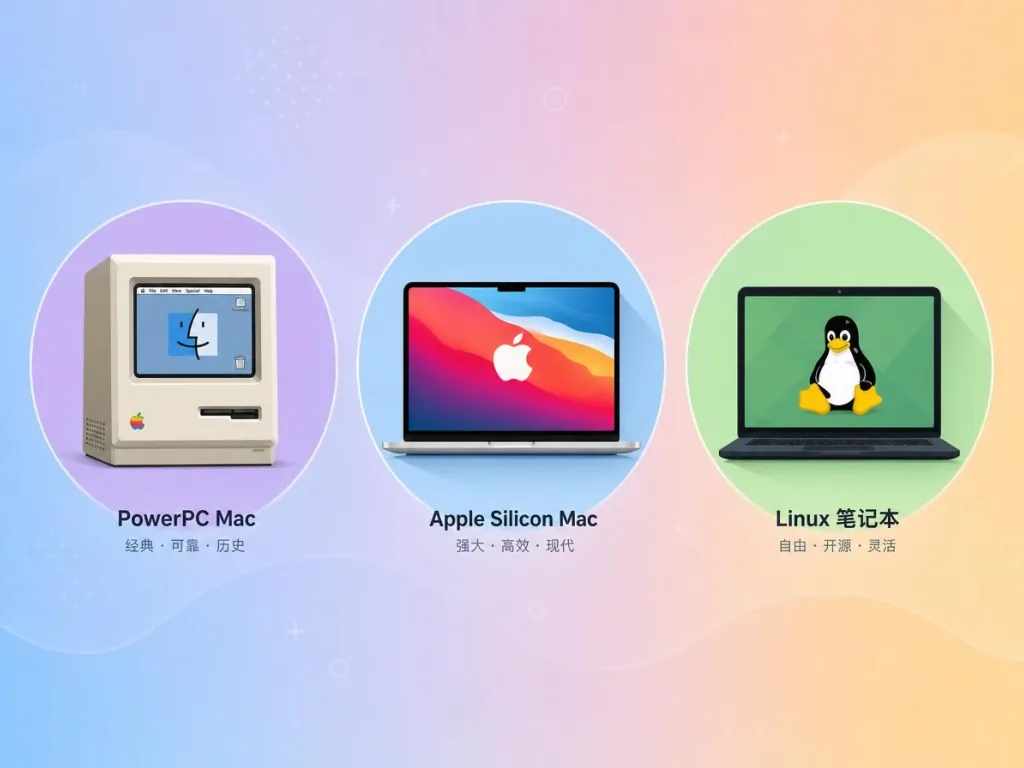
- Legacy Mac maintainers: users with Intel Macs or PowerPC Macs who want to reinstall old machines; macUSB supports burning every generation from Tiger 10.4 to the latest systems;
- Apple Silicon early adopters: users who bought M1/M2/M3 machines and need to make rescue drives for Intel Macs; the automatic Rosetta prompt saves a lot of troubleshooting time;
- Multi-OS developers: engineers who regularly test Linux distributions on a Mac or deploy Windows To Go.
Who it is not for: light users who only need one USB install (the createinstallmedia command line may be faster), and advanced users holding a lot of Windows images that need special driver injection (drivers still have to be handled manually).
6. Competition
| Tool | Legacy macOS support | Built-in downloader | Linux/Windows support | GUI wizard | Notarized |
|---|---|---|---|---|---|
| macUSB | ✅ Tiger to Golden Gate | ✅ Including betas | ✅ Full platform | ✅ | ✅ |
| DiskMaker X | ⚠️ Only some recent versions | ❌ | ❌ | ✅ | ✅ |
| balenaEtcher | ❌ | ❌ | ✅ | ✅ | ✅ |
| UNetbootin | ❌ | ❌ | ⚠️ Linux only | ✅ | ❌ |
The comparison shows macUSB is one of the few tools that covers "every macOS generation + Linux + Windows" while keeping a GUI wizard. In the extremely narrow niche of legacy systems on Apple Silicon, it has essentially no rival.
7. Getting started
Install (either option):
- GitHub Releases: visit the Releases page and download the latest
.dmg; - Homebrew: run
brew install --cask macusbin a terminal.
First-time setup (the critical step): Open "System Settings -> General -> Login Items & Extensions" and enable "Allow in the Background" for macUSB; then go to "Privacy & Security -> Full Disk Access" and enable macUSB there too. Without these two permissions the burn process will fail.
Prerequisite for burning Windows images (only needed when install.wim exceeds 4GB):
Run brew install wimlib in a terminal; macUSB detects automatically whether wimlib-imagex is available.
Minimal workflow: Open macUSB -> choose a local source file or pull a macOS image with the downloader -> select the target USB drive (note: this erases everything on it; 16GB minimum recommended, 32GB for Sequoia 15+) -> confirm the operation details -> start the process and watch the progress by stage -> when it finishes, eject safely from the final screen.
8. Takeaways and what to do next
The core value of macUSB: it wraps the deeply fiddly engineering process of making legacy macOS boot drives into a graphical wizard that end users can handle, then extends it to Linux and Windows across the board, completely free and free forever. For anyone who needs to make boot drives on a Mac, it deserves a permanent spot in the Applications folder.
- Project: GitHub - Kruszoneq/macUSB
- Website: macusb.app
- One-line pitch: boot drive creation on the Mac, from Tiger to Golden Gate, from Linux to Windows, all in one app.
#macusb #Macusb #kruszoneq #OpenSource #GitHub