Title options (pick 1 of 3)
Screenshot, OCR, screen recording — still juggling apps? This tiny Rust tool does all three
Kiri, at 586 stars: squeezing a screen-capture toolchain from 5 apps down to 1
Screen recording without OBS: this open source tool bundles OCR and editing too
Screenshot, screen recording and OCR all at once? This 586-star Rust tool handles it
1. Opening: one project between the pain and the payoff
Writing technical docs, how many times a day do you screenshot something, draw an arrow on it, and then extract the text inside? You open the built-in macOS screenshot tool — a minute gone. Want to annotate? Open Preview. Want the text out of that code snippet? Switch to some online OCR page and upload the image to a server you know nothing about. Want to record a short demo? Go find OBS, then spend another half hour configuring encoding settings. The whole loop crosses four or five tools and two or three workspaces; twenty minutes later, your document has one more image.
Worse, the material scatters everywhere: screenshots on the desktop, recordings in the Downloads folder, last week's reference image nowhere to be found. Hunting down a screenshot from last week means digging around in Finder for ages.
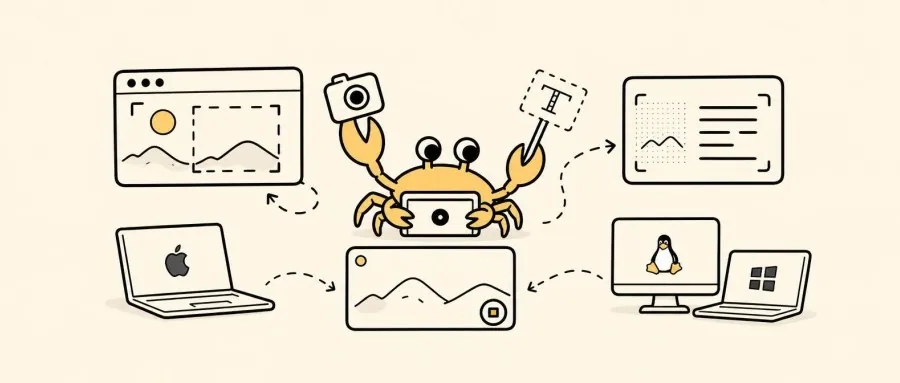
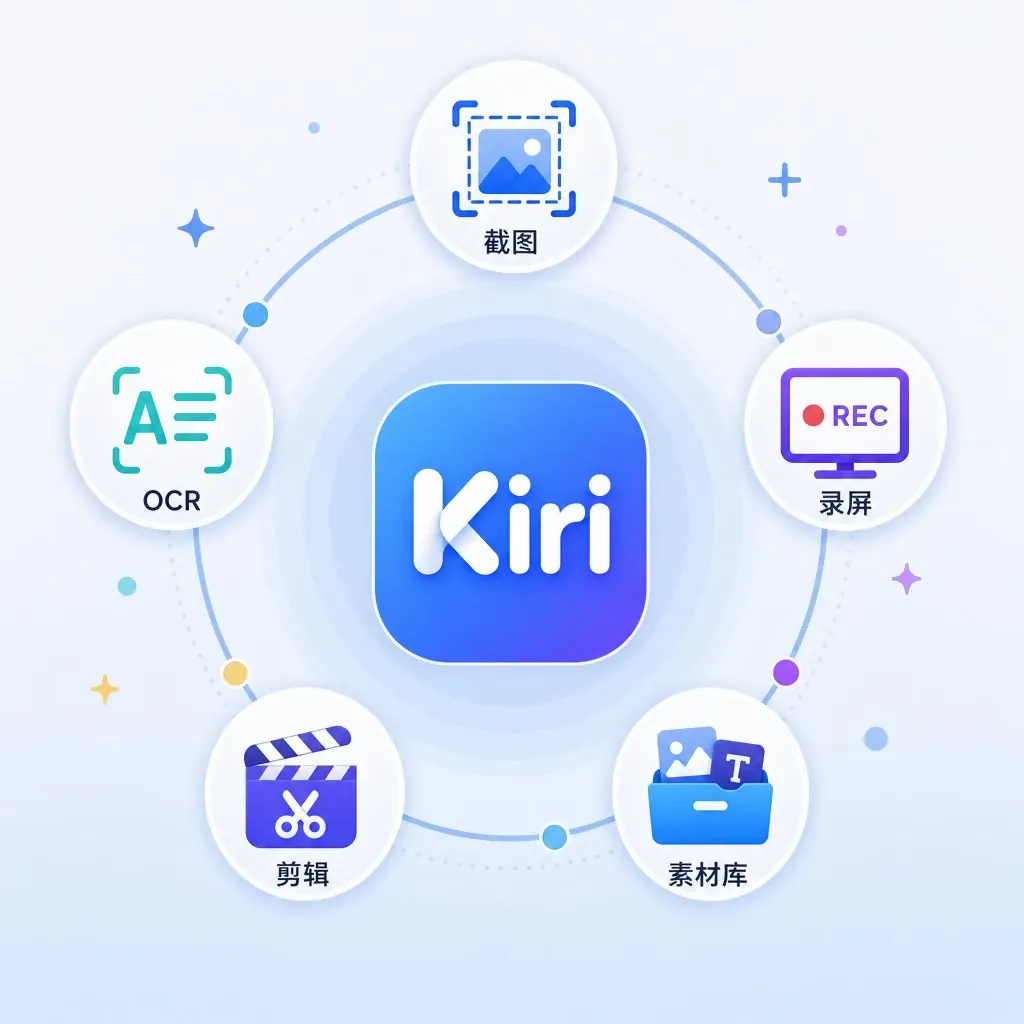
To fix that, the open source community built a small tool called Kiri, which packs screenshots, screen recording, local OCR and asset management into one window. It's a Tauri app written in Rust, open source on GitHub, 586 stars today, MIT licensed.

2. Project overview: what it is in one sentence
Kiri is a cross-platform screenshot and screen-recording tool positioned as "lightweight capture + editing + management in one". Four core keywords: screenshot annotation, local OCR, MP4/GIF recording, local asset library. It supports macOS 14+, Windows x64 and Linux (Ubuntu 24.04 and up), the installer is small, and it launches instantly.
3. Core features in depth
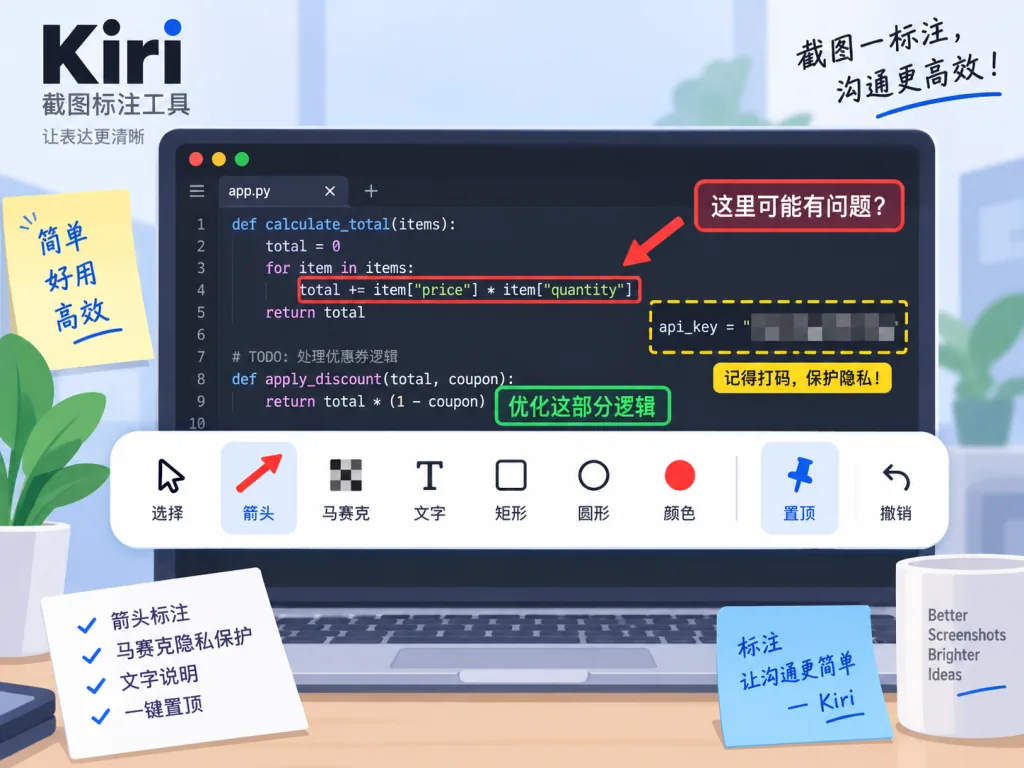
1. Screenshots and annotation: arrows, mosaic, pinned references in one go
Press ⇧⌘A (macOS) or Shift+Ctrl+A (Windows/Linux) to bring up the selection, drag a box to capture, then annotate right inside the app with arrows, rectangles, text or mosaic blocks. When you're done, the image is copied to the clipboard and lands in the local asset library. The really practical one is the "pin" button — it turns a screenshot into a floating reference in the corner of the screen, so when you're writing code you can check the API docs without switching windows left and right.
On the canvas side, Kiri shows width and height sliders along the selection edge, so you can resize before annotating instead of undoing and starting over.
2. Local OCR and QR recognition: offline by default
After capturing, choose "OCR" and text recognition runs on the local model, with the result going straight to the clipboard. Kiri's remote OCR switch is off by default; when you turn it on, every upload prompts a dialog, so images never leave the machine quietly in the background.
QR recognition lives in the same menu and gives you the result directly — screenshot a QR code, paste it in, read the link, and skip picking up your phone to scan it.
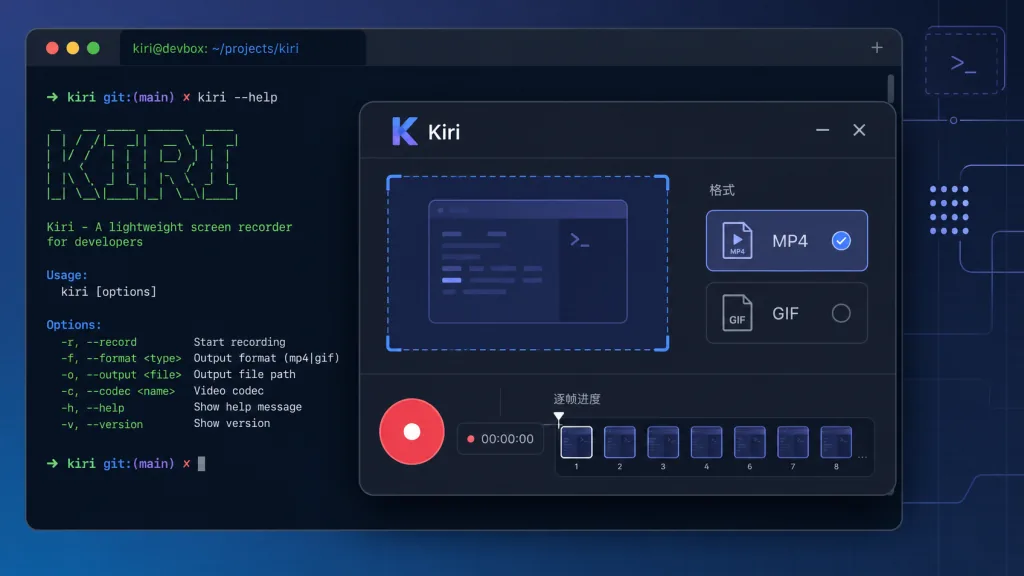
3. Screen recording: MP4 or GIF, with system audio and microphone on separate tracks
Recording can export MP4 (with optional system audio and microphone) or silent GIF. On macOS there's a frame-by-frame progress bar when converting to GIF, and a failure keeps the specific error reason — no "waited three minutes, got a failure popup, not even a reason" kind of afternoon.
4. Video trimming and asset library management
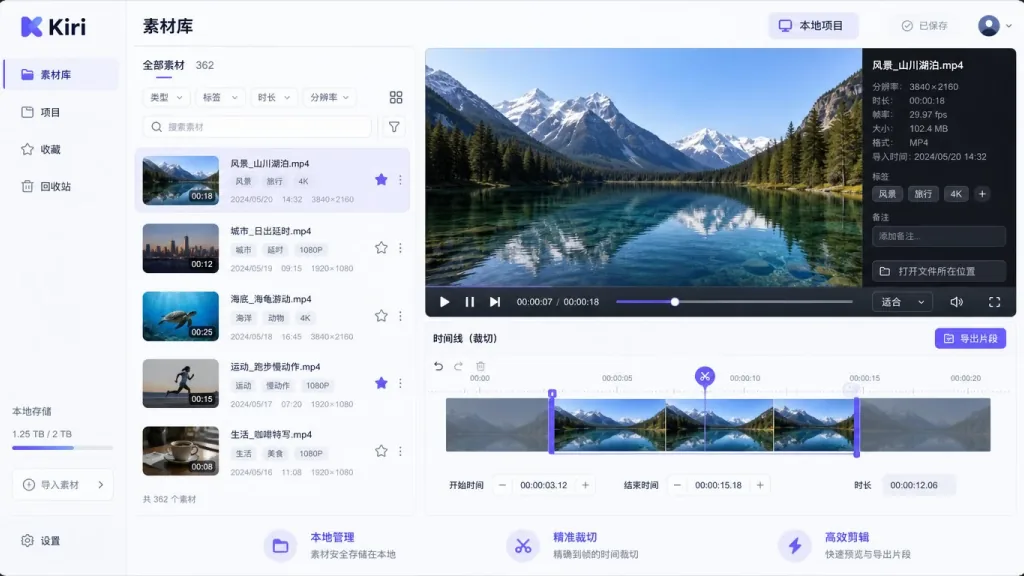
When a recording finishes you can trim and reorder clips right in Kiri and export a new MP4, saving a trip to a video editor. The asset library sidebar supports search, tags and favorites, and deleted files can be recovered from the trash within 30 days. Everything is stored in a local directory by default, so changing machines or reinstalling the OS doesn't lose your annotation history.
4. Technical highlights and performance data
Kiri uses a Tauri 2 + Rust backend with a React frontend. Compared with Electron apps, the installer is smaller and memory use lower, and startup usually takes under a second. CI builds all three platforms through GitHub Actions, and the release cadence is steady.
OCR runs local inference, so screenshots aren't uploaded to the cloud every time. On cross-platform support, macOS uses the native screen recording APIs, Wayland runs through an X11 compatibility layer, and Windows captures via Direct3D — the three paths were completed separately by the community to keep the experience consistent.
5. Use cases and audience
- Technical bloggers and documentation engineers: screenshotting, annotating and extracting code snippets constantly, Kiri compresses the flow from "switch four apps" to "one app".
- Indie developers and ops people: capturing error windows, marking the important part, OCR-ing error logs — remote OCR is off by default, so sensitive data never leaves the machine.
- Course recorders and product demo presenters: MP4 recordings plus simple trimming produce the finished clip, with no cost of learning an editor.
Not a fit for: video creators who need professional editing (multi-track, effects, color grading). Premiere / Final Cut are still the better home for that.
6. How it compares
| Capability | Kiri | Snipaste | CleanShot X | Built-in screenshot tool |
|---|---|---|---|---|
| Screenshot annotation | ✅ | ✅ | ✅ | ❌ |
| Local OCR | ✅ | ❌ | ✅ | ❌ |
| Screen recording MP4/GIF | ✅ | ❌ | ✅ | Partial |
| Video trimming | ✅ | ❌ | ❌ | ❌ |
| Cross-platform | ✅ three platforms | ✅ | ❌ macOS only | ✅ |
| Open source and free | ✅ MIT | ❌ | ❌ | ✅ |
Kiri's differentiator is the whole chain — screenshot + OCR + recording + editing + asset library — connected end to end and open source. Snipaste is strong on pinning images, CleanShot X is strong on deep macOS integration, but neither is open source and both cost money.
7. How to get started quickly
- Go to the Releases page and download the installer for your platform. On macOS drag it into Applications, on Windows run the installer, on Linux see the Linux guide.
- On first launch the system asks for "Screen Recording" and "Accessibility" permissions; shortcuts work once you grant them.
- Press the shortcut to bring up the selection, drag over an area and press
Enterto capture, then choose OCR or recording from the toolbar. - Going further: bind common OCR regions to global shortcuts, turn on the remote OCR switch, and tag your assets to build an index.
8. Summary and next steps
With a small Tauri app written in Rust, Kiri connects the everyday chain of "screenshot → annotate → OCR → record → edit → manage", and its local-first design means sensitive screenshots are no longer exposed. If you take at least five screenshots a day and record at least one walkthrough a week, Kiri will most likely cut two tools out of your workflow.
Project: GitHub | Website: kiri.yuxino.cn | Docs: Usage and FAQ
Tools serve people. Kiri isn't trying to replace all your screenshot tools — it just wants you to switch windows a few times less.
#kiri #Kiri #yuxino #CLI #DevTools #OpenSource #GitHub