Title options (pick 1 of 3)
Recordly: the open-source recorder that turns anyone into a demo-video pro
Recordly getting-started guide: from screen capture to finished cut, with 80% less post-production work
Finish when you stop recording? This 31K-star open-source tool hides editing inside the capture
Recordly: the open-source recorder that turns anyone into a demo-video pro
1. Still dreading screen recording?
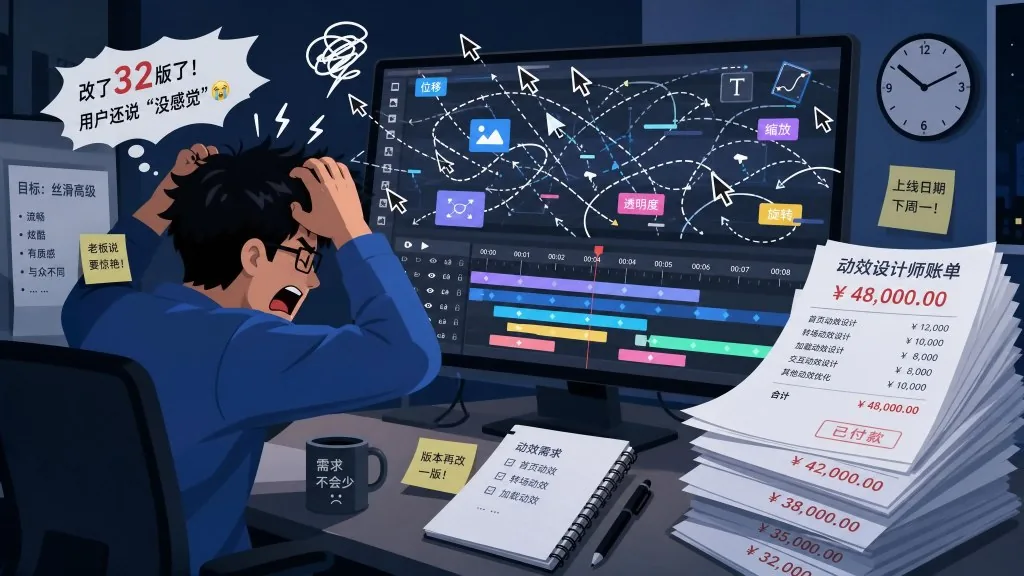
Product manager: "Record a demo of the new feature for me, the client wants to see it tomorrow." Developer: "I recorded it, but the mouse flew around and the picture is a blur... Hire a motion designer for zoom and cursor effects? That's 5,000 bucks and a week of lead time." Indie developer: you want a 60-second demo for your open-source project, so you cut the PR, hunt for assets, stay up two hours — and the export still looks like an internal meeting recording.
Screen recorders are everywhere, from OBS to Loom to the various domestic options. The real pain starts after you stop recording: zoom tracking, cursor smoothing, click effects, camera bubbles, background styling, export compression. Most tools handle only the first 10%; the other 90% of "turning it into a finished video" is either missing or sold separately. Recordly stuffs that 90% into a desktop app for free.
2. Project overview: in one sentence
Recordly is an open-source desktop screen recorder and editor built for demos, walkthroughs and product intros. Its pitch is "finished the moment you stop recording". It has 31602+ stars on GitHub, is written mainly in TypeScript, supports macOS, Windows and Linux, and is licensed under AGPL 3.0.
Four keywords define it: auto zoom, cursor beautification, camera bubble, extension ecosystem.
3. A deep dive into the core features
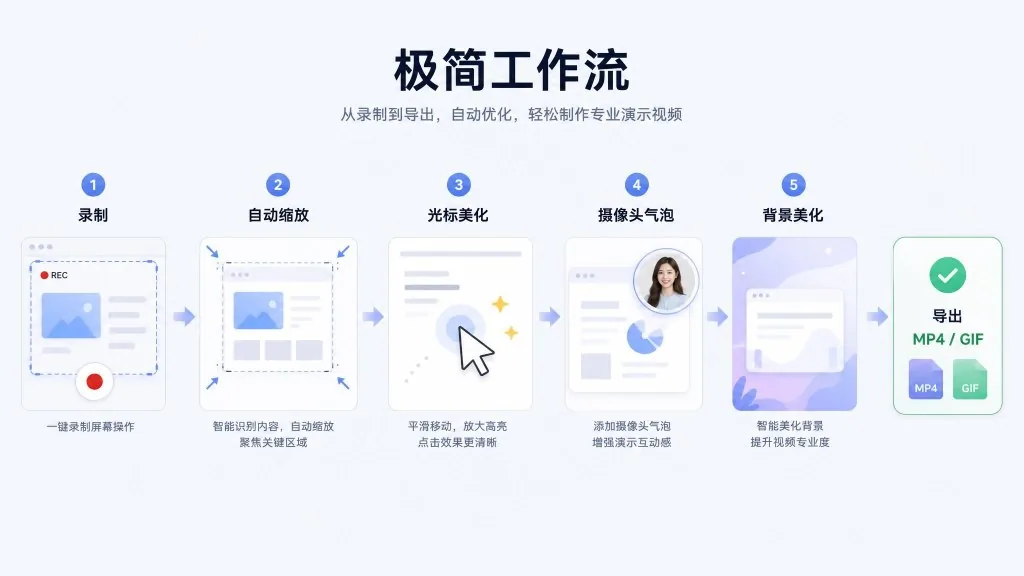
1. Auto zoom plus cursor smoothing, so the frame follows the action
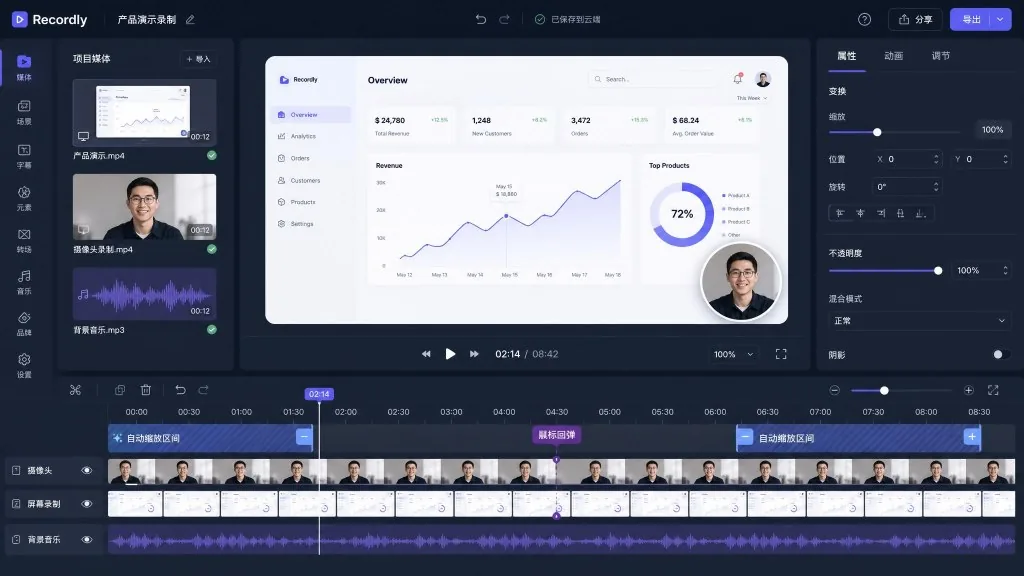
The most awkward part of traditional screen recording: the user clicks some tiny, unremarkable button and the viewer has no idea where they clicked. Recordly ships smart zoom suggestions driven by cursor activity — it generates zoom keyframes automatically in click-dense regions. It also offers cursor smoothing, motion blur, click bounce and hover sway to turn a wild mouse into professional demo-grade motion. On export it swaps the native pointer for macOS-style cursor assets, so output looks consistent across platforms.
2. Dynamic camera bubble for streamer-grade framing
Plenty of people want to appear on camera while recording tutorials, but a large webcam view steals the show. Recordly's answer is a floating bubble camera: nine-grid presets or custom X/Y coordinates, mirroring, adjustable corner radius and shadow, and — notably — it shrinks itself when the frame zooms in so it never covers the key action. It's essentially OBS picture-in-picture turned into a two-click preset.
3. A timeline built for demos
The timeline isn't a plain editing track; it's specialized for screen recordings. Drag-to-set zoom regions, speed regions, trimming, text/image/shape annotations and extra audio tracks are all managed on one track. Projects save as .recordly files and resume next time you open them. Cursor style, camera position and background styling all persist with the project, so you never re-tune everything for a re-record.
4. Frame styling plus an extension marketplace
Apply a wallpaper, solid color or blurred background right after recording, add corner radius, shadow and padding, and a raw "window capture" becomes a finished video in a second. There's also a community extension marketplace: click sounds, device frames, browser mockups, wallpaper packs and render hooks can all be supplied by third parties — similar to VS Code's plugin ecosystem.
4. Technical highlights and performance numbers
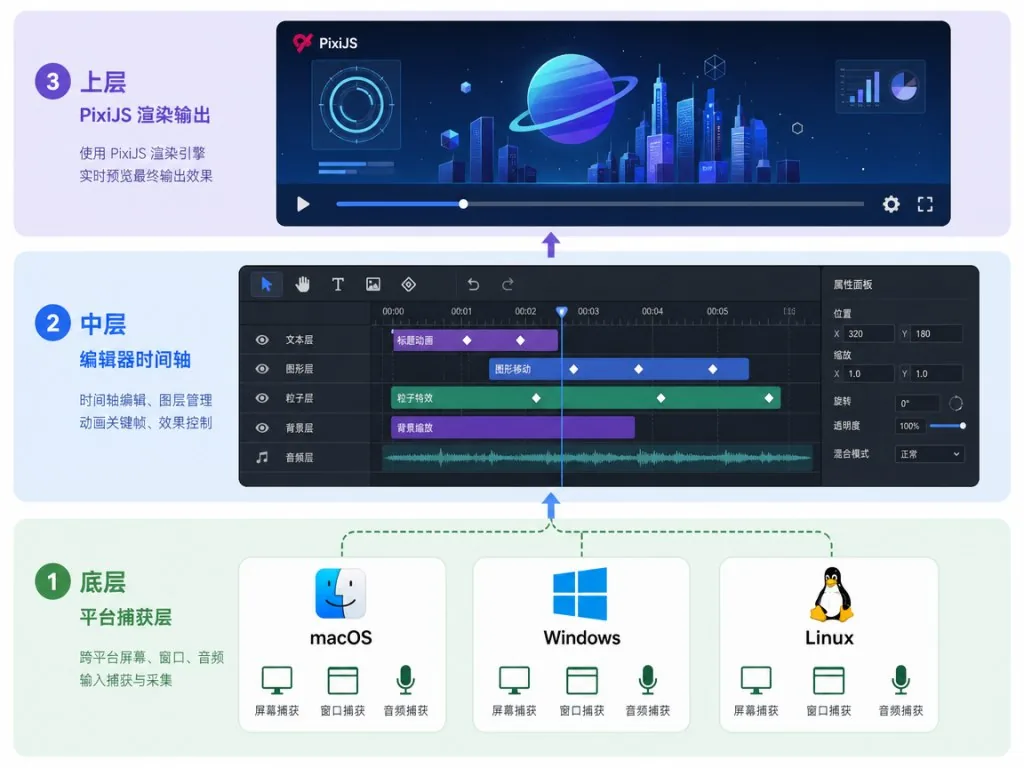
- Native capture layer: ScreenCaptureKit on macOS, Windows Graphics Capture (WGC) + WASAPI audio on Windows, Electron capture on Linux; one abstraction layer wraps them all, keeping the experience roughly consistent across platforms.
- PixiJS rendering: preview and export share the same scene compositing logic — what you see is what you export.
- Project file format:
.recordlystores source media paths plus editor state, so it's re-openable and version-control friendly (good for team collaboration). - Export formats: MP4 or GIF, with GIF presets for frame rate, looping and size.
- System requirements: macOS 14.0+ / Windows 10 Build 19041+ / a modern Linux distribution.
5. Use cases and who it fits
Who it fits:
- Indie developers / open-source authors: a 1–2 minute feature demo for the README or homepage.
- Product managers / solutions consultants: fast client demos, bug reproduction clips, training material.
- Tech bloggers / tutorial creators: course and tutorial recording where cursor and zoom boost readability.
- Remote teams: a replacement for pricey enterprise screen-recording SaaS — self-hosted and extensible.
Who it doesn't fit:
- Long-form creators who need film-grade multicam editing, color grading and VFX (go use Premiere / DaVinci).
- Users who only need basic, unedited screen capture and don't care about polish (the built-in recorder is enough).
6. Comparison with alternatives
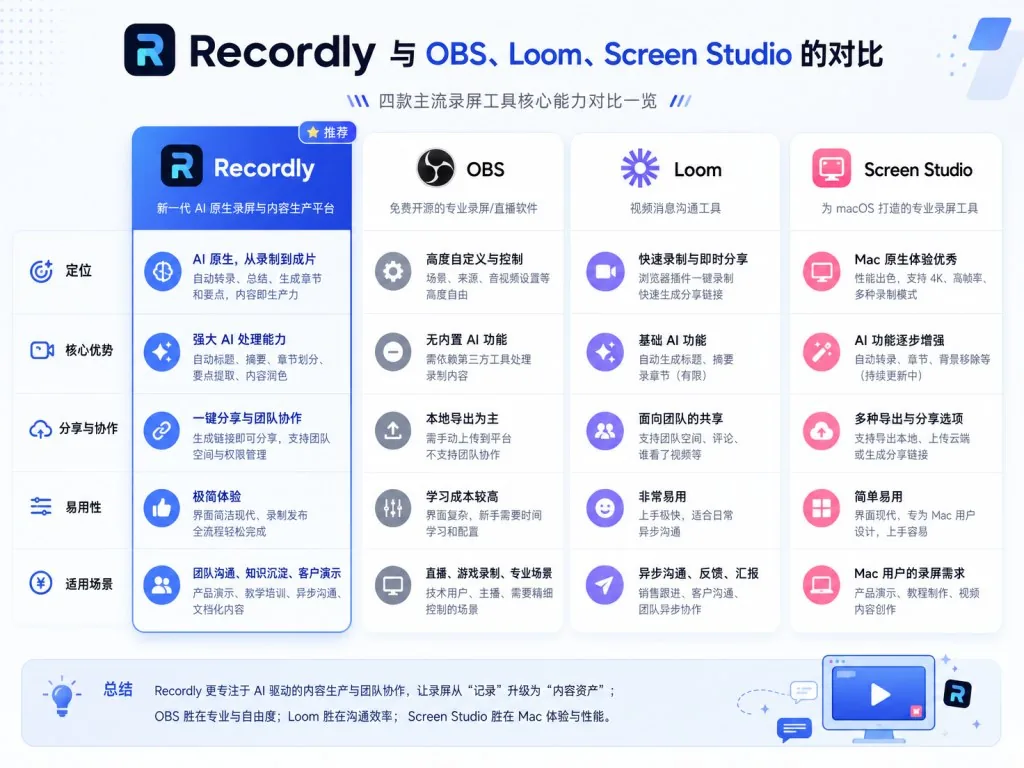
| Dimension | Recordly | OBS Studio | Loom | Screen Studio |
|---|---|---|---|---|
| Open source | ✅ AGPL 3.0 | ✅ GPL | ❌ Commercial | ❌ Commercial |
| Auto zoom tracking | ✅ Built in | ❌ Manual keyframes | Partial | ✅ |
| Cursor beautification | ✅ Smooth/bounce/sway | ❌ | ❌ | Partial |
| Camera bubble | ✅ Presets + custom | Manual layout | Partial | ✅ |
| Extension marketplace | ✅ | ✅ Plugin ecosystem | ❌ | ❌ |
| Cross-platform | ✅ All three | ✅ All three | Web | macOS first |
| Price | Completely free | Completely free | Subscription | One-time payment |
The key difference: Recordly makes "recording plus demo-grade post-production" one free open-source tool, while OBS leans toward live streaming and broadcast, and Loom / Screen Studio are closed-source paid products.
7. How to get started fast
1. Download and install
Grab the installer for your platform from GitHub Releases (https://github.com/webadderallorg/Recordly/releases ); Arch users can just run yay -S recordly-bin.
2. First recording Open Recordly → pick a screen or window → enable microphone and system audio → hit record → it drops you into the editor when you stop.
3. The minimal path to a finished video After recording: click "auto zoom suggestions" and accept the recommendations → set cursor style to the macOS look → add a camera bubble in the bottom right → apply a dark gradient wallpaper background → export MP4.
4. Going further
- Add speed regions on the timeline so waiting stretches play at 2x.
- Visit the Marketplace to install click sounds, device frames and other extensions.
- Save the project as
.recordlyfor incremental edits later.
5. Building from source
git clone https://github.com/webadderallorg/Recordly.git recordly
cd recordly
npm install
npm run dev
Per-platform packaging is available via npm run build:mac / build:win / build:linux.
8. Summary and next steps
Recordly closes the whole "recording → finished demo" loop in a single open-source desktop app: auto zoom, cursor polish, camera bubble, frame decoration and an extension ecosystem, all free on every platform. For developers and product people who fight screen recording every day, it's one of the few open-source options today that lets you ship the moment you stop recording.
Suggested next steps:
- Download the installer from GitHub Releases and run through a 60-second demo to feel the full workflow.
- Save your favorite style as a
.recordlyproject template and reuse it next time. - Browse the Marketplace and install 1–2 extensions to see what the ecosystem can do.
- Want to contribute code? Start with Linux cursor hiding, export performance or UI/UX polish — the README explicitly asks for help.
Project: https://github.com/webadderallorg/Recordly Website and Marketplace: https://recordly.dev
#recordly #Recordly #webadderallorg #aivideoediting #scriptedvideo #talkingheadvideo #opensource #GitHub