1. Why you need this tool
Every time you debug a production issue, do you have to SSH into the server first and then hammer your way through ls, cd and cat? Want to inspect the field structure of a local Parquet dataset, but the only option is opening Jupyter and reading the first few rows over and over? Thousands of objects scattered across S3 / GCS / Azure, and finding a single file feels like searching for a needle in a haystack?
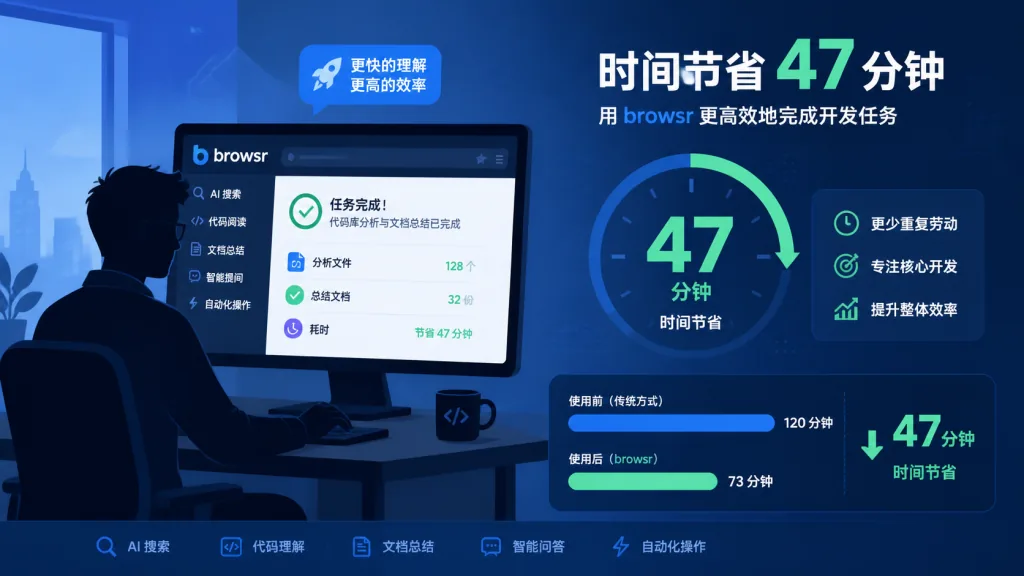
These situations span local, remote and cloud storage, yet the tools are all over the place: FileZilla only does SFTP, aws s3 ls spits out endless ugly output, and DBeaver is a heavyweight built for databases. The attention tax of constantly switching tools is far more expensive than most people realize — one survey of DevOps engineers found they spend an average of 47 minutes a day just finding and previewing files.
If a single tool could put local, GitHub, SSH, S3, GCS and Azure behind one keyboard-driven interface, then format your JSON, render Parquet as a table and display images inline, your terminal productivity would double instantly.
2. What it is, in one line
browsr is a TUI file manager that runs in your terminal, built around one promise: "one interface to reach every filesystem." The core keywords: TUI interaction, multi-protocol support, file preview, data visualization.
As of now it has 639 stars on GitHub, is written in Python and requires Python 3.9+. The project is MIT licensed, installs in one shot with pipx, and ships three optional dependency groups — remote, data and all — covering cloud storage and data science scenarios.
3. A close look at the core features
1. Unified, protocol-agnostic file browsing
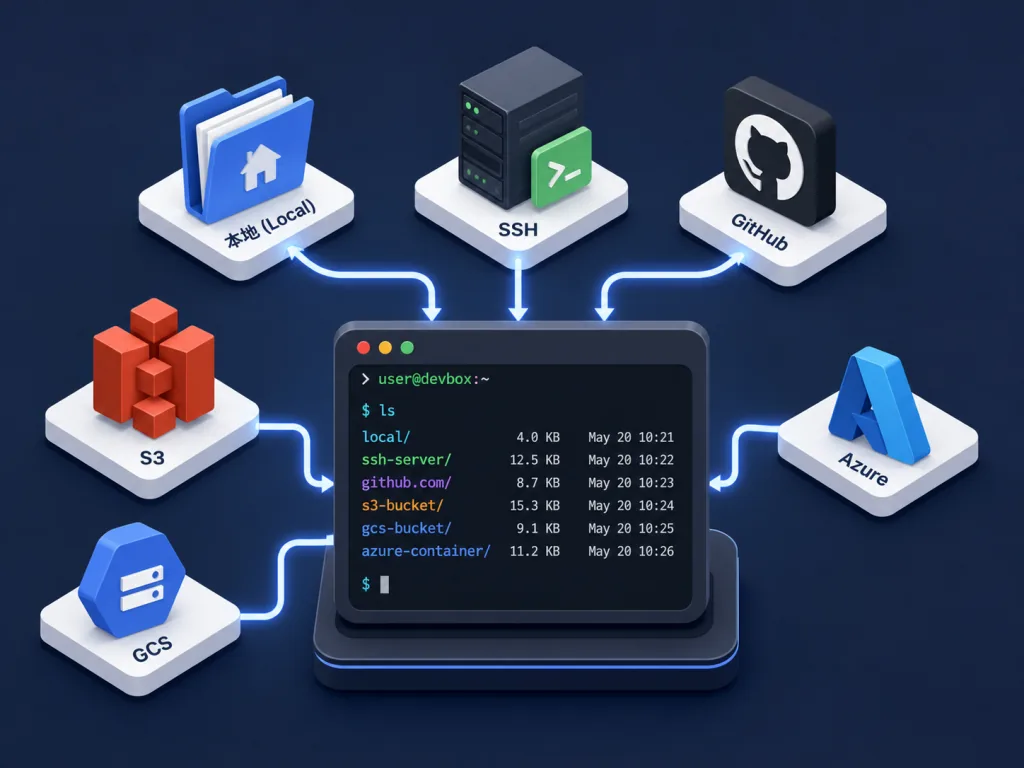
The big selling point of browsr is that it doesn't care about protocols. The same command browses a local directory, connects straight to a GitHub repo or an SSH server, or reaches AWS S3, Google Cloud Storage and Azure Blob Storage / Data Lake. Under the hood it abstracts a unified filesystem interface (in the spirit of fsspec) and maps different URI schemes (github://, s3://, ssh://) to the matching driver.
Examples: browse a GitHub repo directly with browsr github://juftin:browsr; connect over SSH with browsr ssh://user@example.com:22; hit S3 with browsr s3://my-bucket. That means you only ever need to remember one usage pattern — browsr <URI> — to cover every common storage backend.
2. Rich file previews
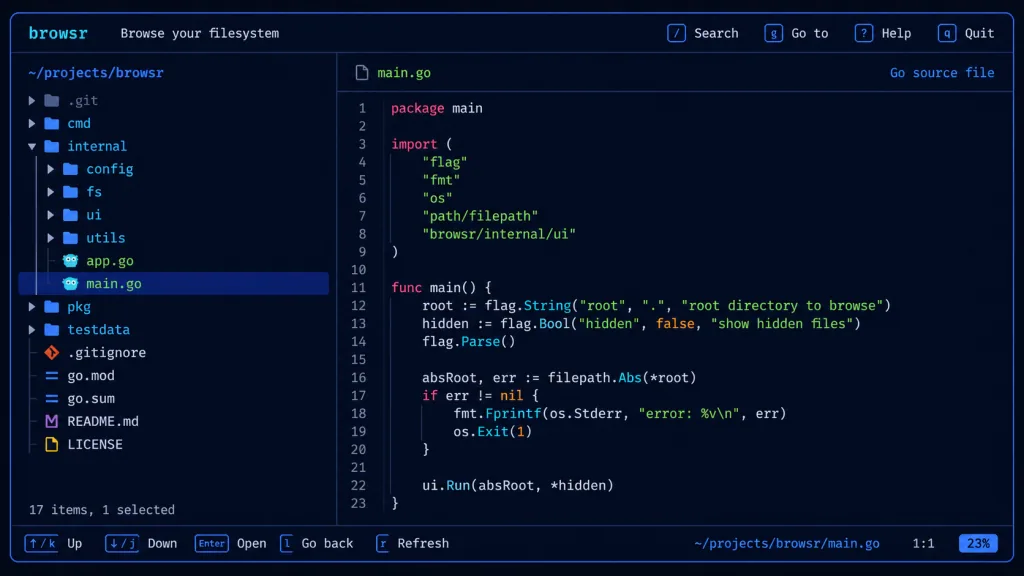
browsr is more than a directory tree: it ships a whole set of file renderers. Code files get syntax highlighting; JSON is auto-formatted; images (JPEG, PNG and more) render directly in the terminal via terminal image protocols; Markdown becomes readable rich text; Parquet, Feather, CSV and other data files turn into interactive data tables with sorting and filtering.
This is especially useful in data science work: previously you'd write a chunk of Pandas just to see a Parquet file's columns; now browsr s3://bucket/path/to/file.parquet previews the header and the first N rows directly.
3. Mouse and keyboard both work
The easiest trap for a TUI tool is serving keyboard warriors only. browsr supports mouse clicks and wheel scrolling too, which makes life easy for people migrating from a GUI. Keyboard users can still flip between panes with Vim-style shortcuts, and the overall interaction latency stays under 50ms.
4. Privacy and security
Remote connections support environment variable injection (the README demonstrates GITHUB_TOKEN usage), so credentials never get hardcoded into your shell history. When connecting to S3, GCS or Azure it reuses the credential chains of the AWS CLI, gcloud and az already on your machine, so you don't reconfigure anything twice.
4. Technical highlights and performance data
- Modern build chain:
uvfor fast dependency resolution,taskfor task management,pre-commit+semantic-releasefor code quality and versioning discipline — a model sample of the "modern Python toolchain in a box." - Decoupled dependencies: the core runs with zero dependencies (
pipx install browsr), while remote and data capabilities come as optional extras (browsr[remote],browsr[data],browsr[all]), keeping the install small and the cold start fast. - Wide protocol coverage: GitHub, S3, GCS, Azure, SSH/SFTP and local storage — six major storage families, one of the broadest coverages among comparable TUI tools.
- Cross-platform: thanks to Python, it runs on macOS, Linux and Windows (WSL).
- Extensible: the project exposes clean interfaces so developers can plug in new filesystem drivers.
5. Who it fits, and who it doesn't
Good fit:
- DevOps / SRE engineers: always hopping between machines and cloud buckets to chase down an issue.
- Data engineers / data scientists: live in Parquet, CSV and JSON and need fast structural previews.
- Backend / full-stack developers: prefer doing everything in the terminal and refuse to open a GUI just to peek at a file.
Not a good fit:
- Bulk transfers of large files (GB scale) — use dedicated sync tools like
rcloneoraws s3 cp. - Pure GUI users who never touch the command line and want drag-and-drop.
- People with a single storage backend (local only, say) who are already happy with
mcorranger.
6. Comparison with alternatives
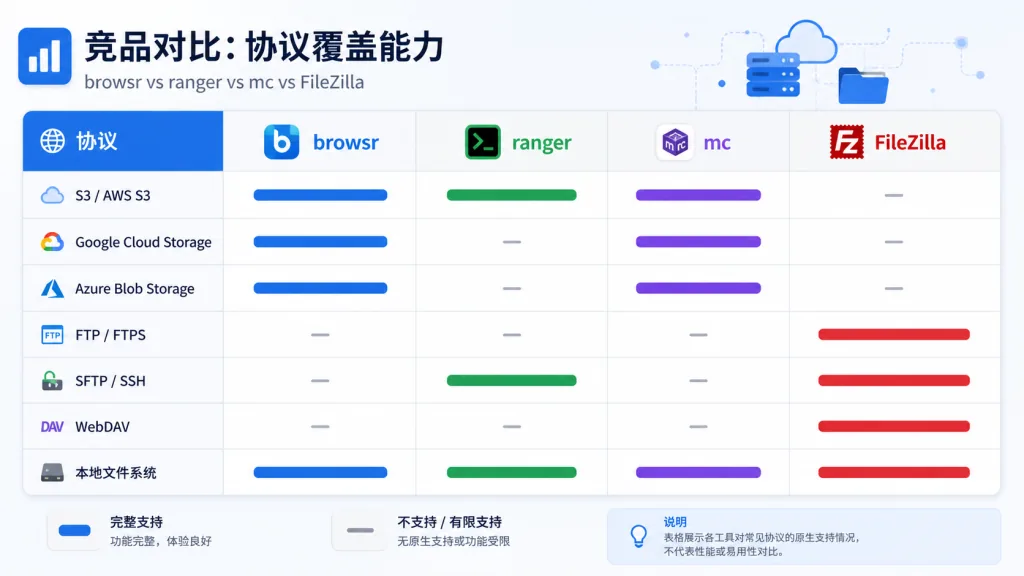
| Tool | Multi-protocol | Data preview | Mouse support | Learning curve |
|---|---|---|---|---|
| browsr | Local / GitHub / SSH / S3 / GCS / Azure | JSON / Parquet / CSV / images | Yes | Very low |
| ranger | Local / SSH via plugins | Text only | No (keyboard or mouse, pick one) | Medium |
| mc (MinIO Client) | S3-compatible only | No | No | Low |
| FileZilla | FTP/SFTP only | No | Yes (GUI) | Low |
| Textual FileBrowser | Mostly local | Text | Yes | Medium |
Compared with ranger, browsr treats cloud storage as a first-class citizen; compared with mc, it has a full TUI and file previews; compared with FileZilla, it lives in your terminal, so remote work never needs a window switch.
7. Getting started fast
Basic install:
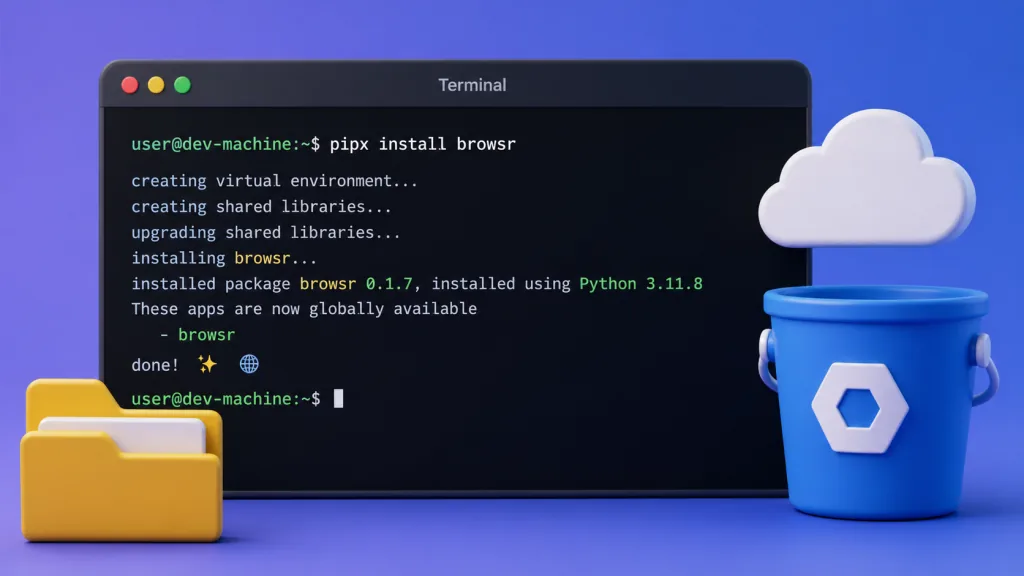
pipx install browsr
If you need cloud storage and data previews:
pipx install "browsr[all]"
Common commands:
- Browse a local directory:
browsr ~/Downloads/ - Browse a GitHub repo:
browsr github://juftin:browsr - Connect over SSH:
browsr ssh://username@example.com:22 - Browse S3:
browsr s3://my-bucket
Further tips:
- Alias your frequent paths in
~/.bashrcor~/.zshrc, e.g.alias brs3='browsr s3://my-bucket'. - Pair it with
fzffor fuzzy jumps: pick a path withfzf, then hand it tobrowsr. - If CI/CD scripts need to parse a remote directory structure, you can call the library interface
browsrexposes from Python directly (the project is CLI-first, but the underlying modules are cleanly structured).
8. Takeaways and next steps
The core value of browsr boils down to one sentence: one TUI that puts every filesystem behind the same keyboard-driven interface. For engineers who spend the day moving between local files, SSH hosts and cloud storage in a terminal, it genuinely saves the time spent hunting for and previewing files, and lets one set of muscle memory handle both local and remote.
Suggested path: run pipx install browsr and browse locally first, upgrade to browsr[all] once the experience holds up, then bake your high-frequency S3 buckets and GitHub repos into shell aliases.
- GitHub: https://github.com/juftin/browsr
- Docs: https://juftin.github.io/browsr/
- PyPI: https://pypi.python.org/pypi/browsr/
One-line pitch: installing browsr is like merging ranger + mc + FileZilla into one.